How to Sync Your A Faster You AI Training Plan to Zwift
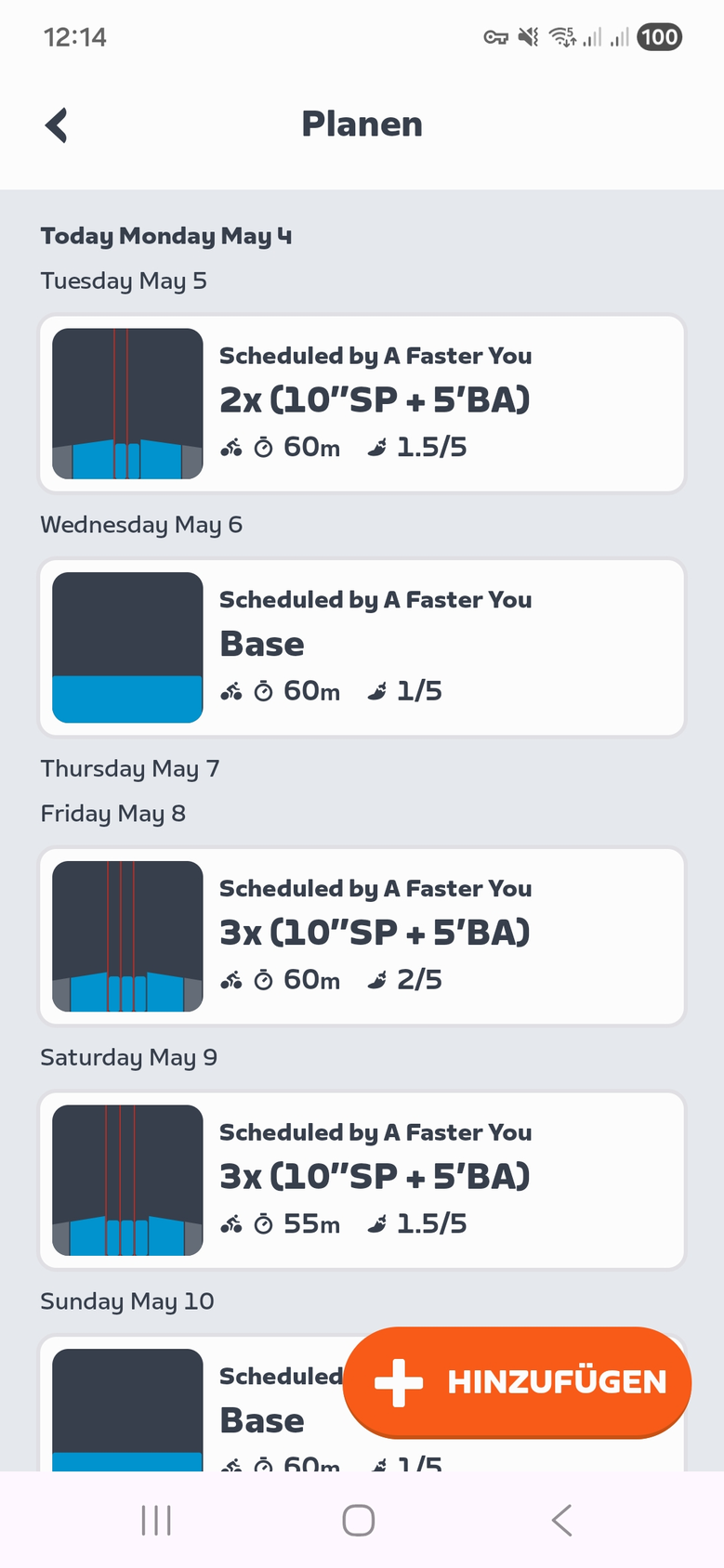
Connect Zwift inside your training plan, hit Create Plan, and every workout your A Faster You AI generates lands in your Zwift Companion automatically. You ride it, your finished activity flows back, and the day is ticked off in your plan — no FIT files, no manual upload, no second app to babysit.
That's the whole feature in two sentences. The rest of this article walks you through the full sign-up flow on your phone — from the marketing page to seeing your A Faster You workouts inside Zwift Companion — and explains what happens after they're synced.
Before you start: When you connect Zwift, A Faster You starts a 14-day Premium trial automatically — no credit card, no checkout. The trial unlocks the AI training plan, the workout push to Zwift, and all of the adaptive features the plan relies on (AI VO2max and VLamax estimates, fuelling guidance, training score, body reserve, readiness score). After 14 days you can keep Premium running or let it expire — your data stays either way.
Full walkthrough
Below is the complete sign-up flow on a phone — from opening the site for the first time to seeing your AI-generated workouts inside Zwift Companion. Fourteen screens. Five minutes if you're unhurried.
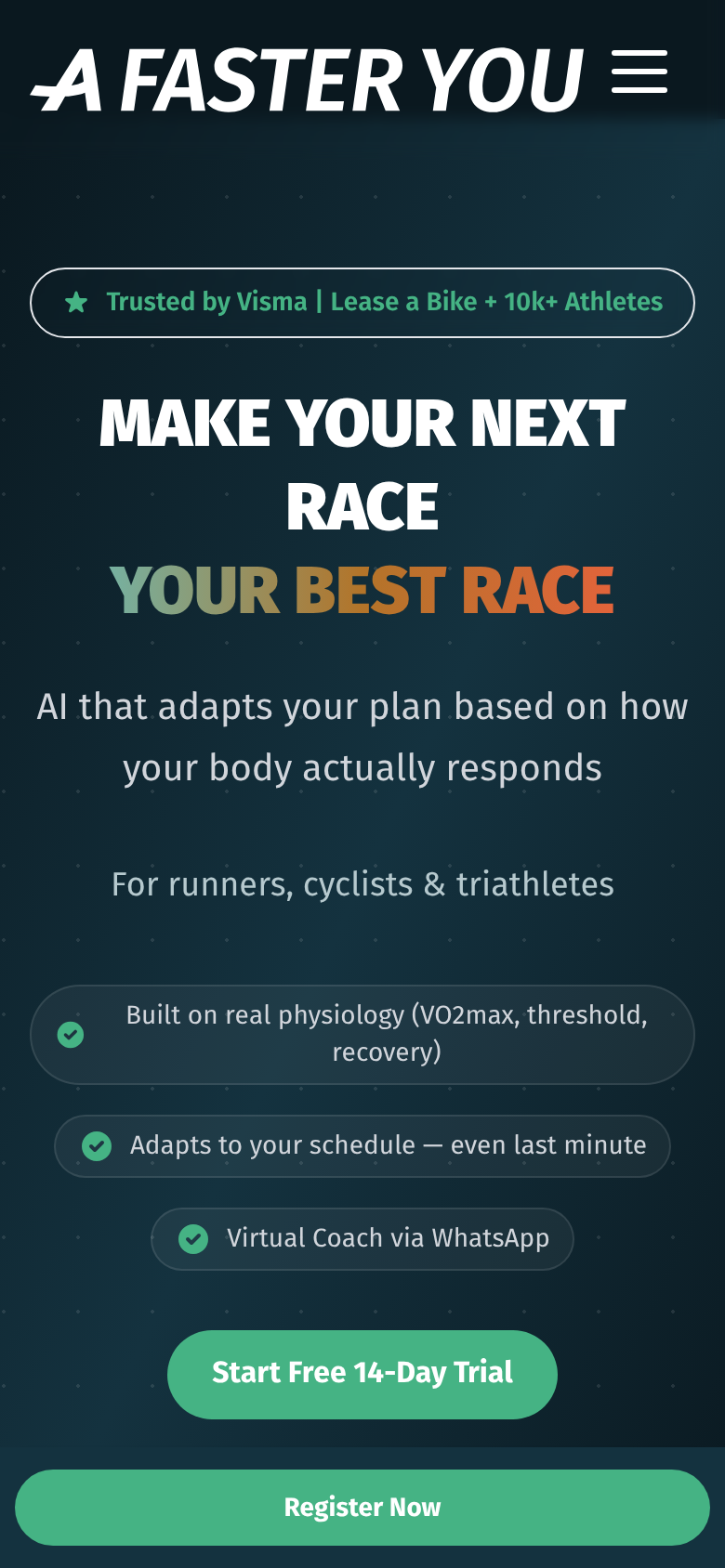
1. Open afasteryou.com on your phone
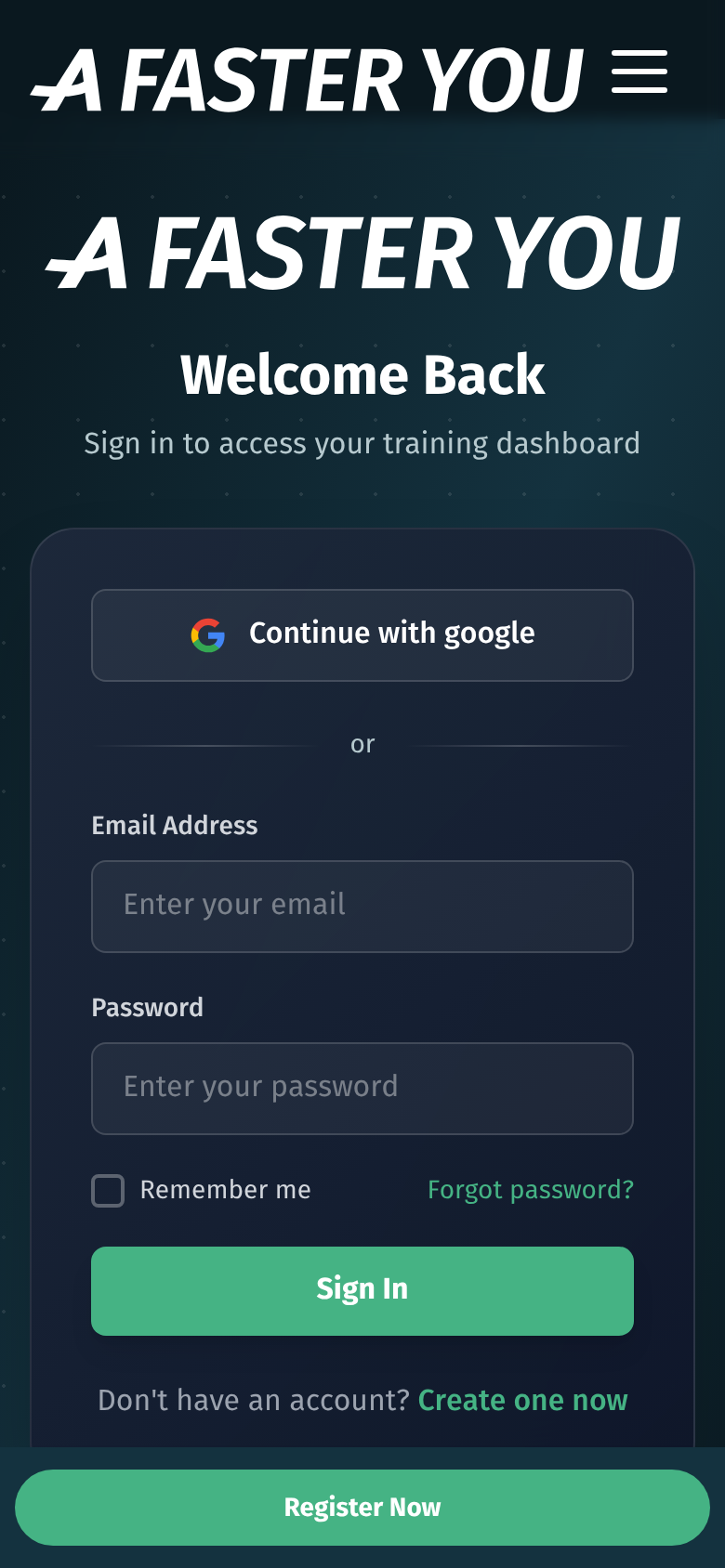
2. Sign in or create an account
3. Welcome — pick what to do first
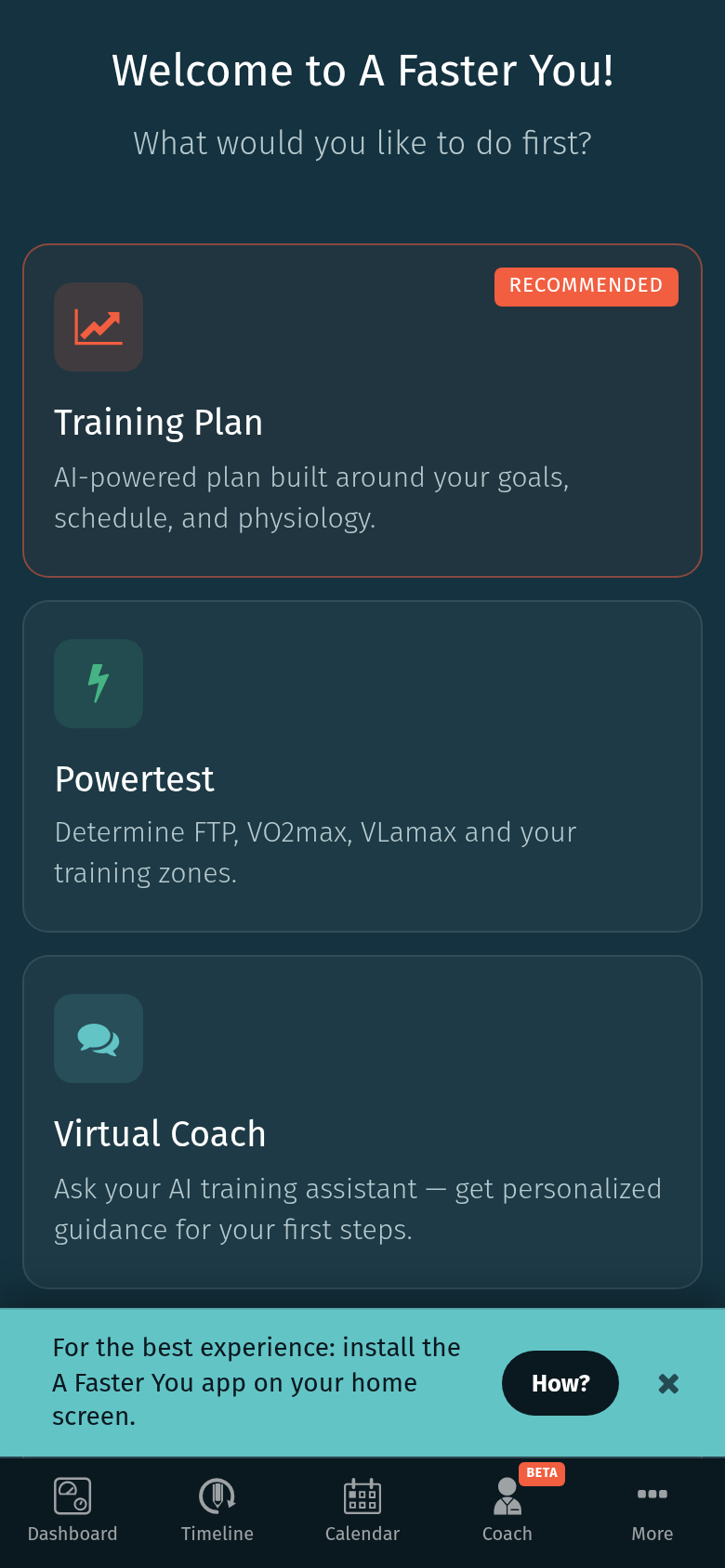
4. Install A Faster You as a phone app (optional, recommended)
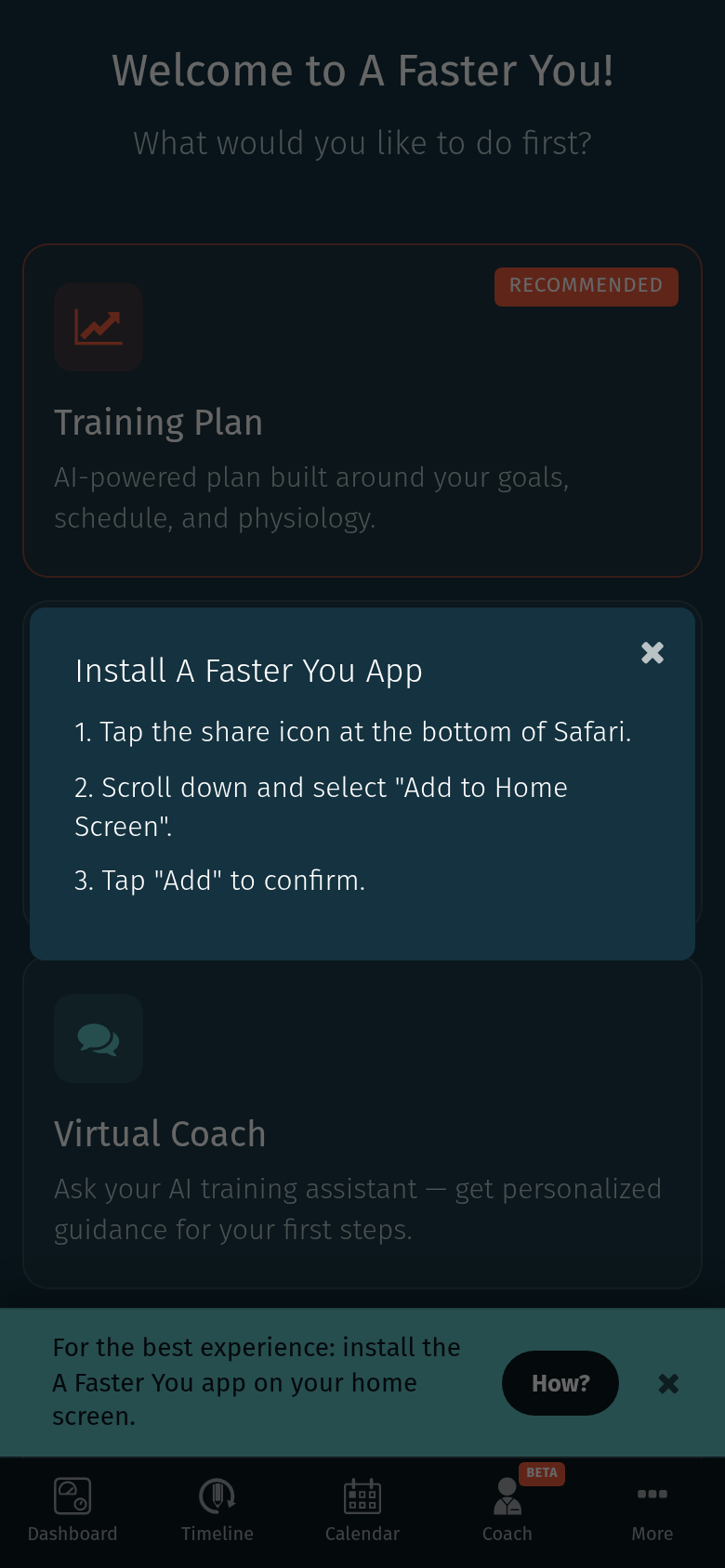
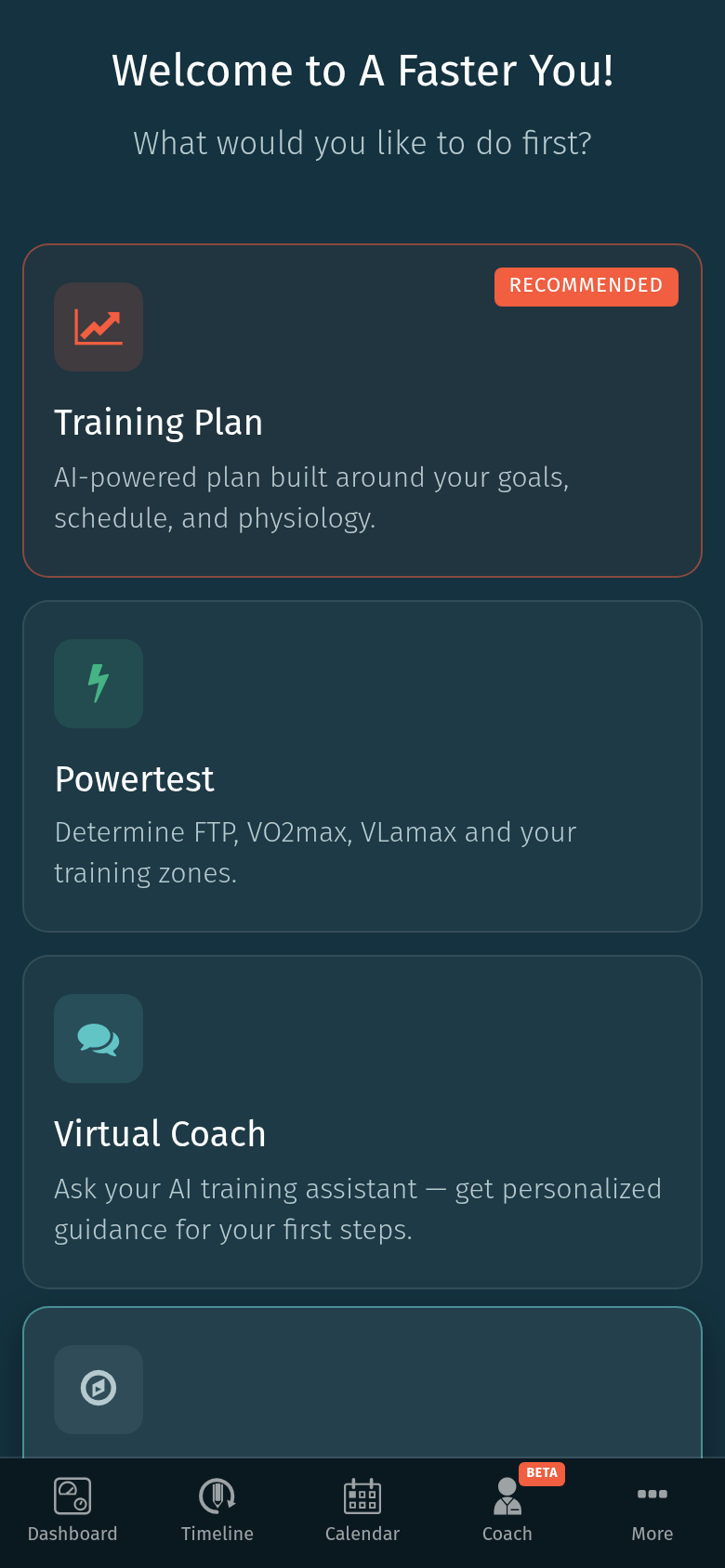
5. Pick "Training Plan"
6. Choose your sport
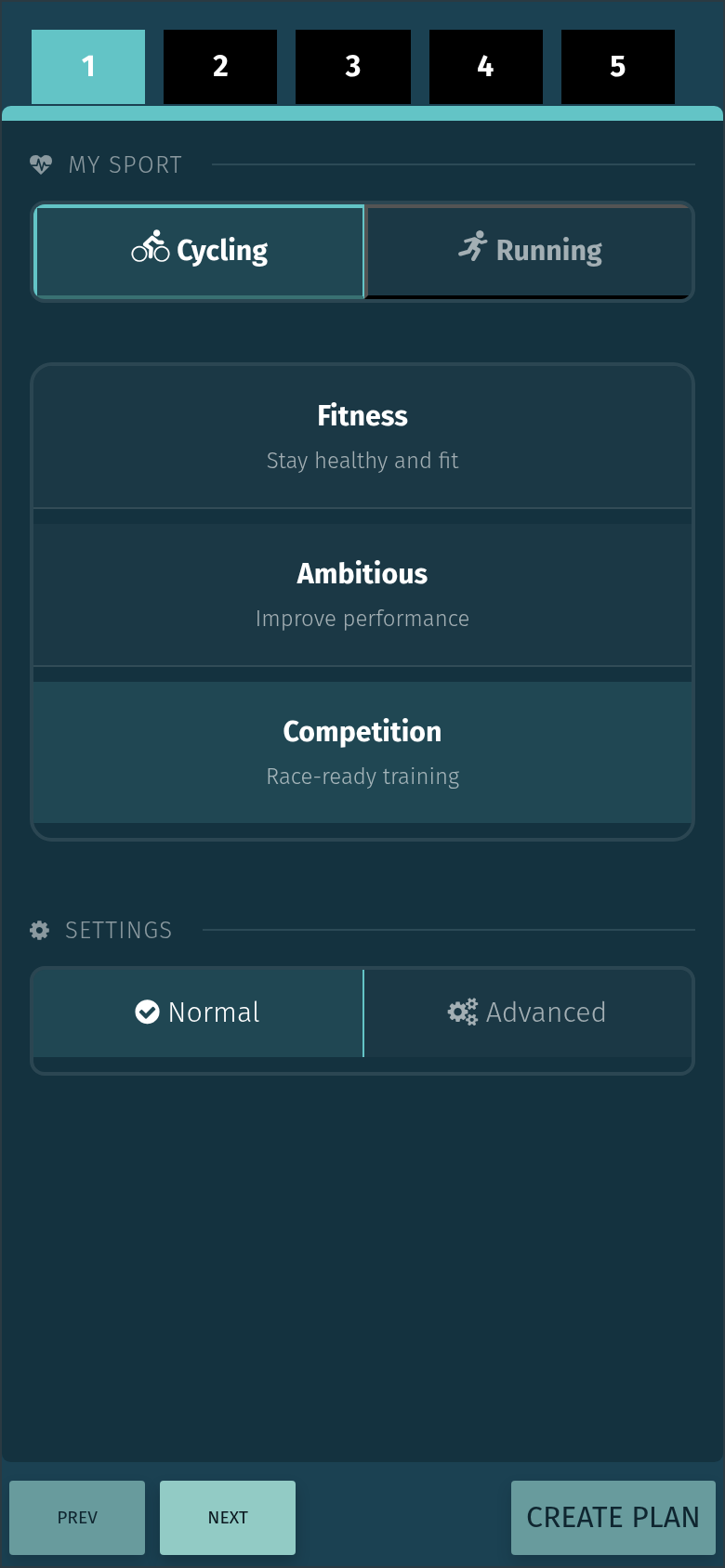
7. Set your goal and target date
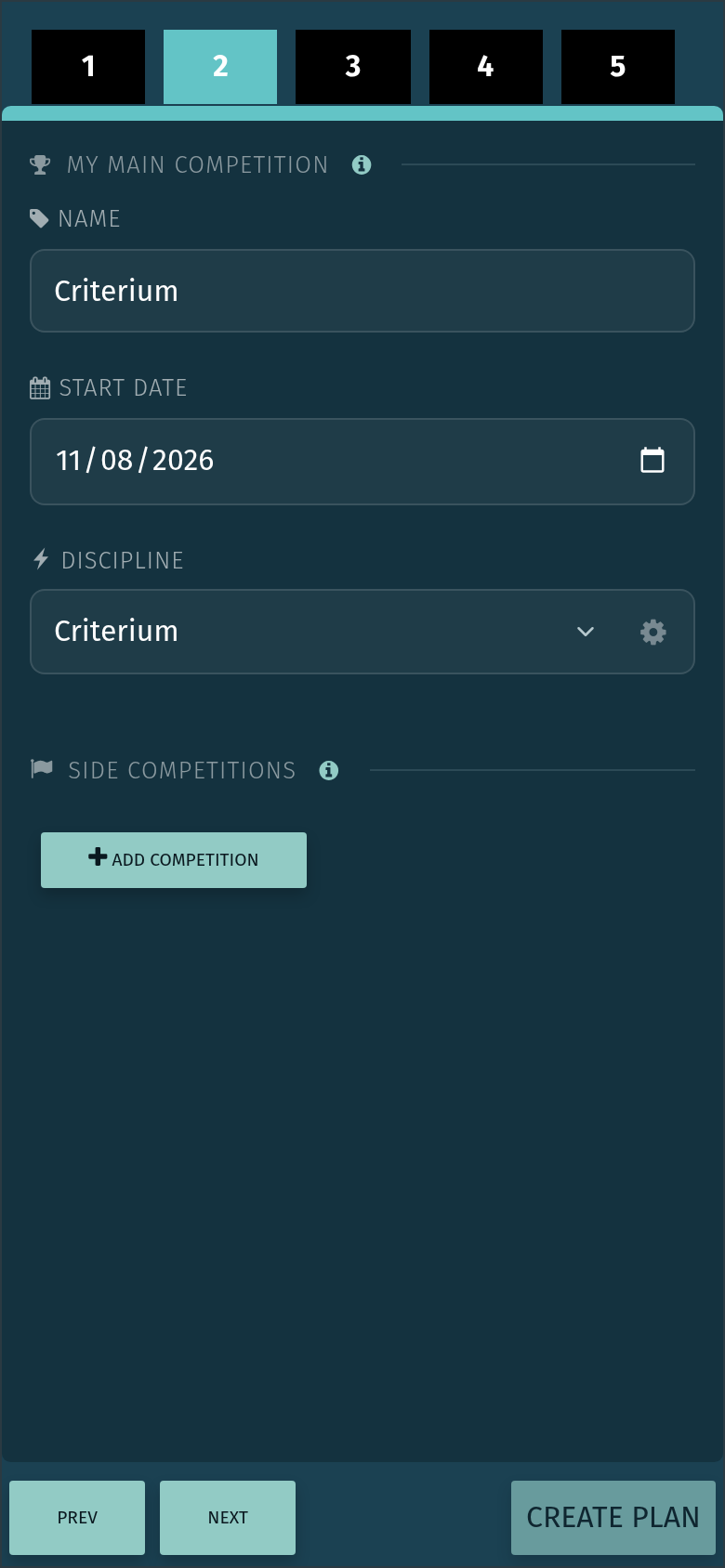
8. Open the Connections tab — connect Zwift
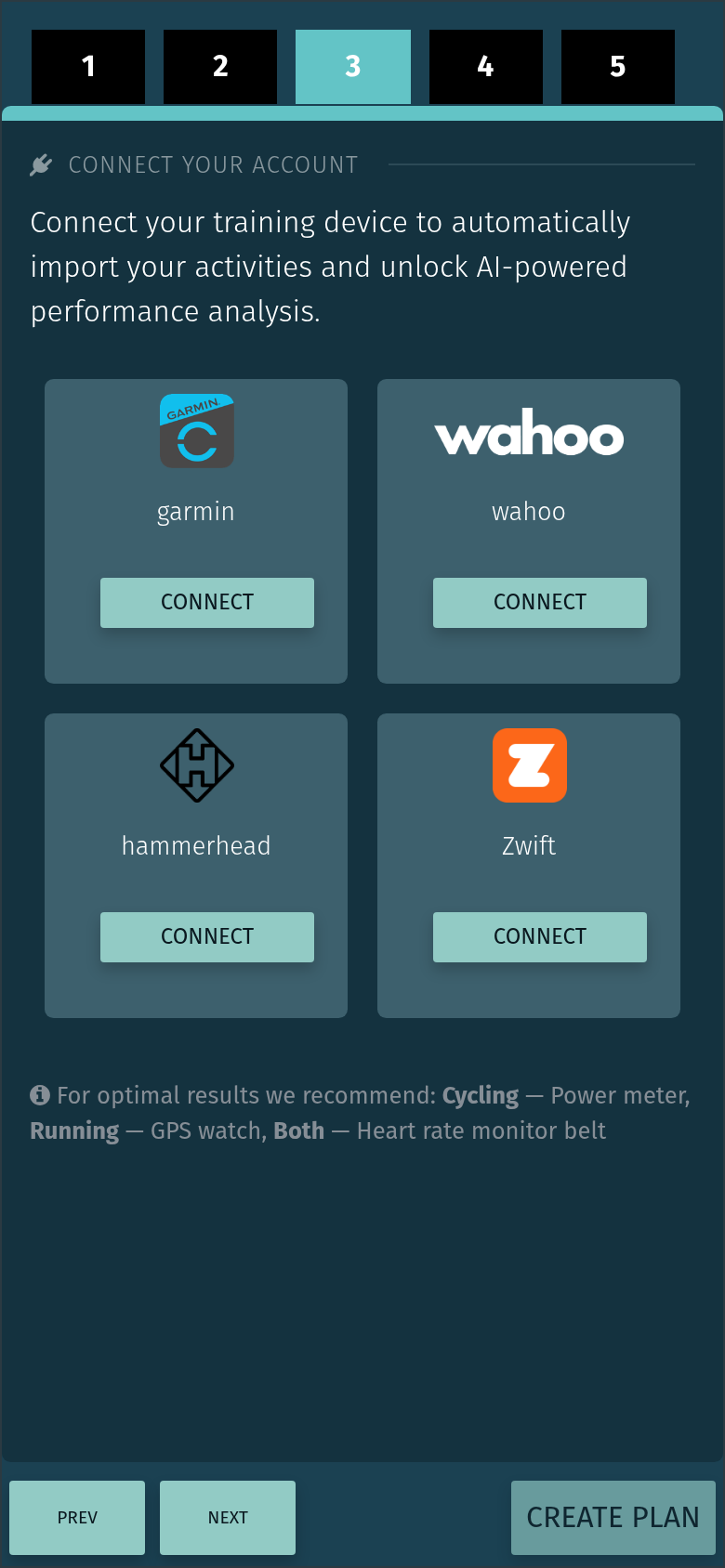
9. Log in to Zwift
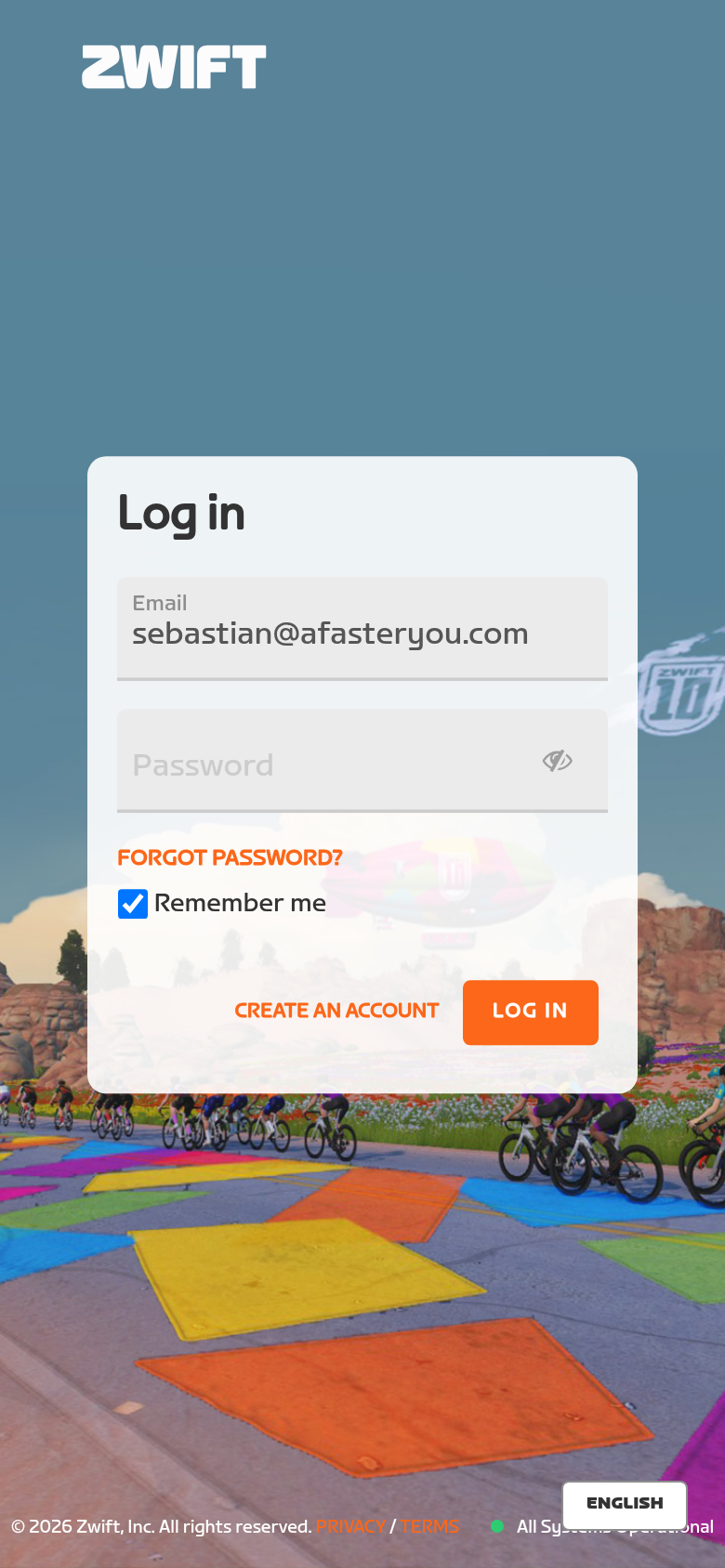
10. Connected — sync is on automatically
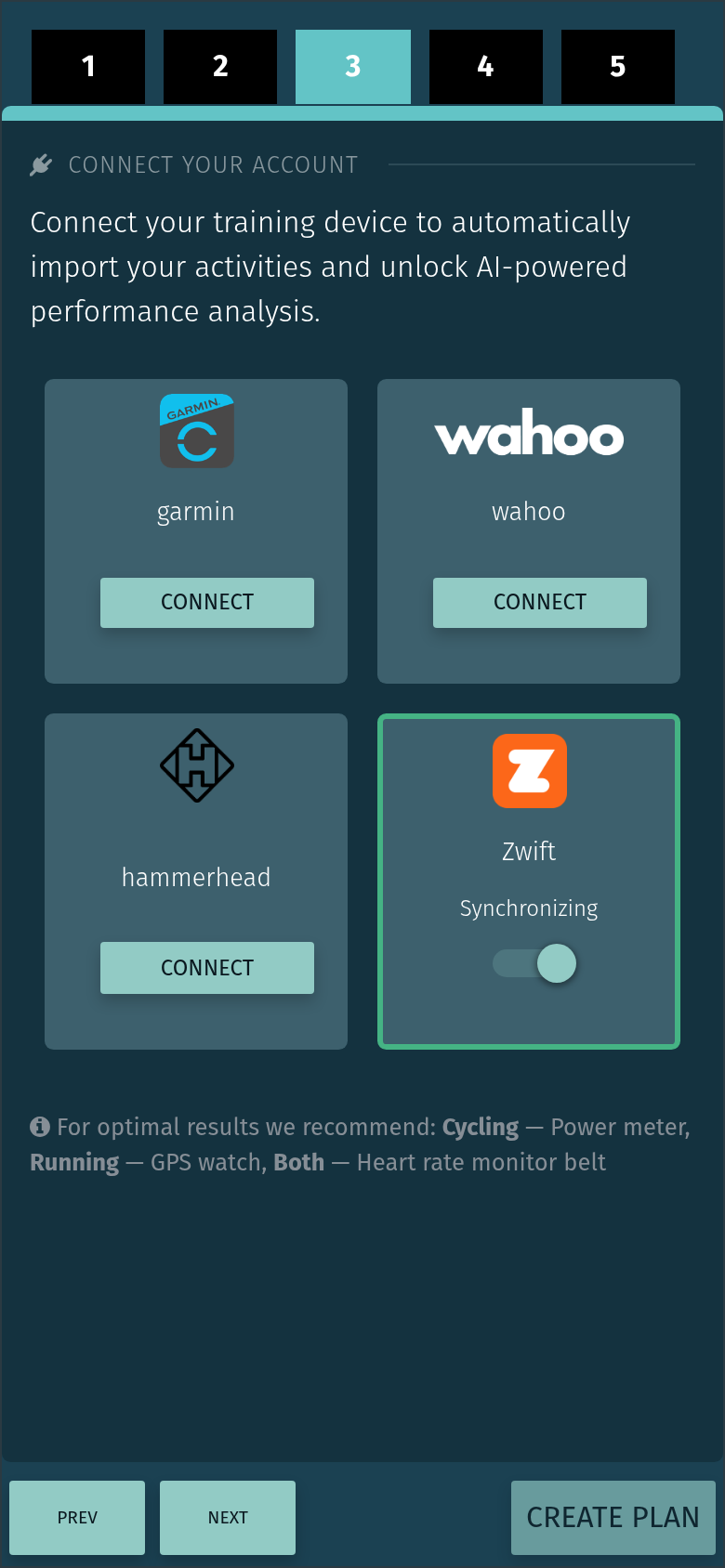
11. Body metrics
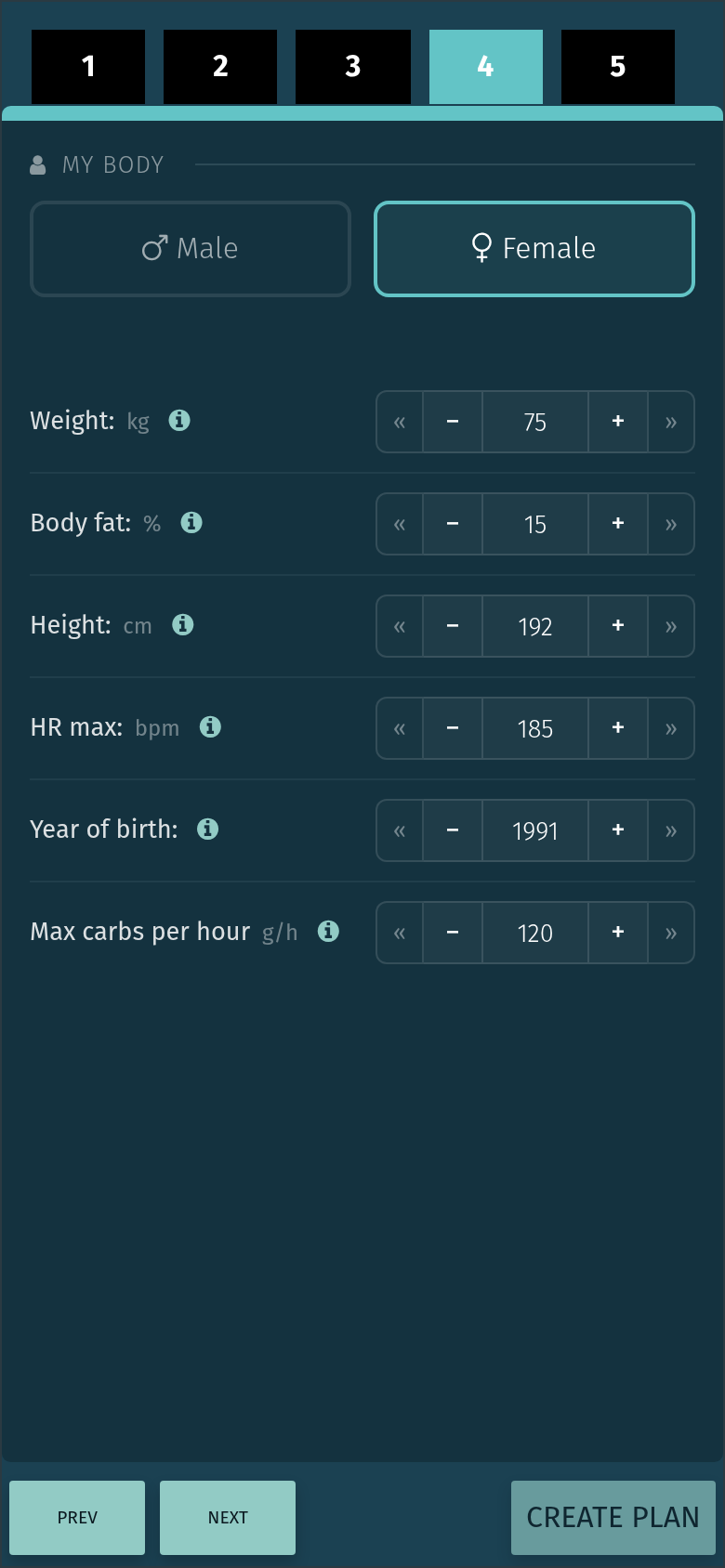
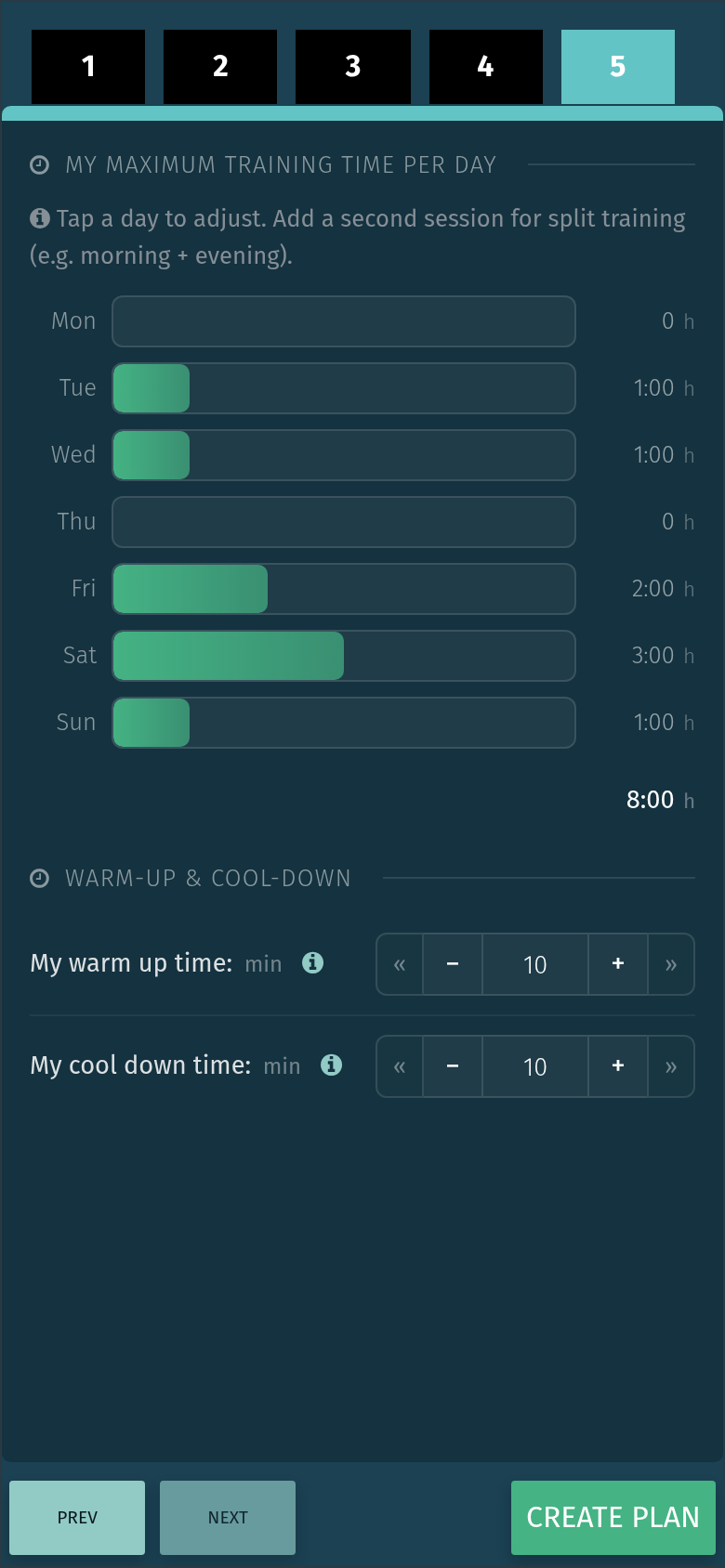
12. Available training time
13. Plan generated
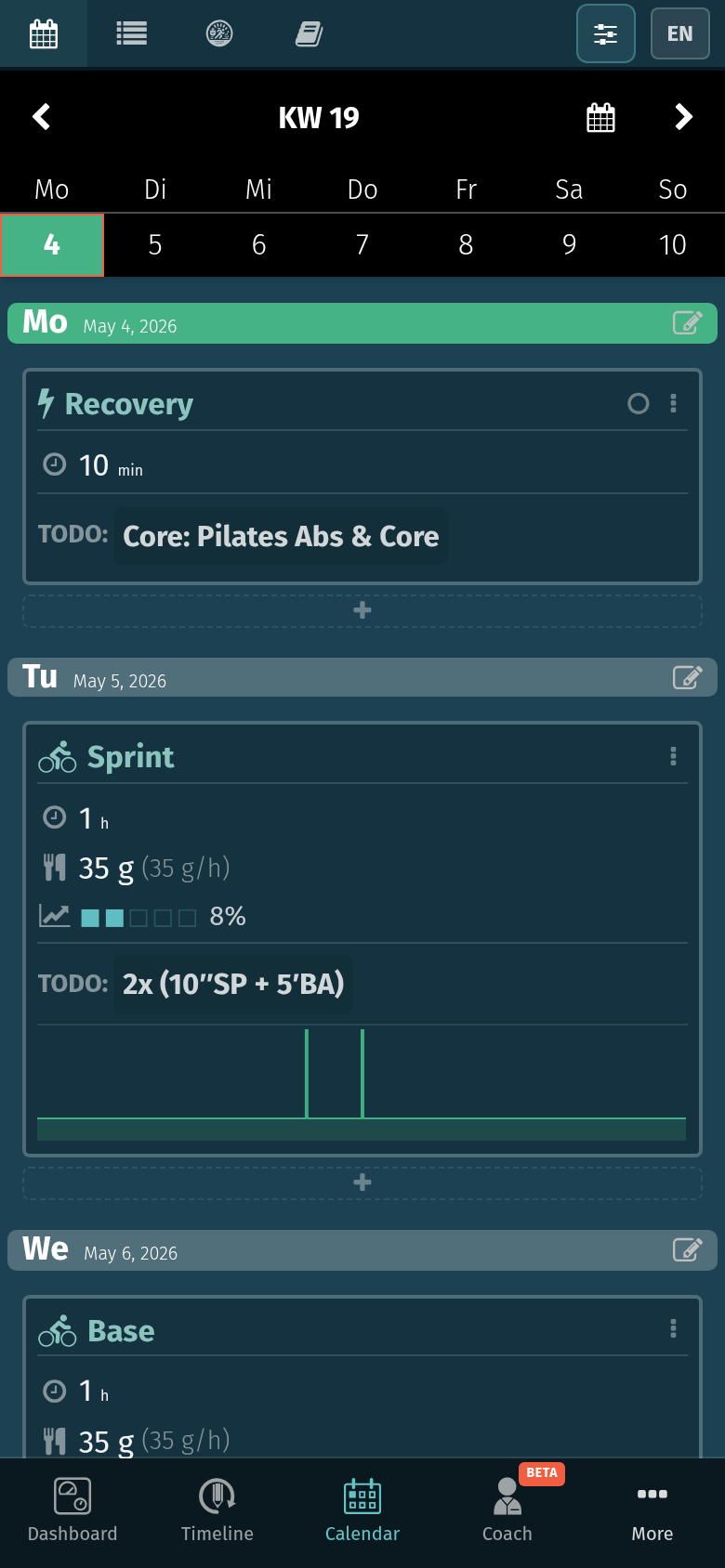
14. Workouts in Zwift Companion
That's the full flow. From here on, A Faster You pushes new workouts as your plan adapts, and your finished rides flow back automatically.
What happens after Create Plan
Push: your AI workouts go to Zwift
The moment you hit Create Plan, A Faster You generates the periodised plan and sends your current week's schedule to Zwift. The default window is the current training week (1–7 days ahead). Multiple sessions on the same day are pushed as separate schedule entries. As each week rolls over, the next week pushes automatically.
The workouts appear in:
- Zwift Companion (mobile) on the day they're scheduled
- Zwift Game Client (desktop) — visible from the workout-pick screen the moment you launch a ride
If you ride on Apple TV: depending on the Apple TV client version and Zwift's planner support there, the workout may appear in the Companion-driven workout select rather than in the local list. Picking the workout from Companion is the reliable path.
Adaptive: your plan changes as your training week unfolds
A Faster You doesn't push your plan once and forget about it. The plan adapts on two levels:
Up to three times a day, the AI rebalances the load of your upcoming workouts — intensity, interval count, duration — without changing the structure of your week:
- Morning — when overnight health data lands (HRV, sleep, recovery from connected wearables), today's planned intensity is checked against what your body can absorb.
- After every activity — actuals replace planned, and the next sessions adjust.
- Overnight — if a session was missed, the rest of the week is rebalanced so the goal stays in reach.
Once a week, on Monday morning, the entire current week is freshly recalculated — and the reason is metabolic. Every Monday, the AI generates a fresh prediction of your VO2max, VLamax, FatMax, and threshold power from the previous seven days of training. That updated metabolic profile becomes the new basis for the plan, which is why this is the only path that may change workout structure, the week's goal, or apply a new powertest. The shape of your week is predictable from Monday to Sunday — only the load flexes day-to-day, while the bigger picture tracks your real physiology week by week.
Every adaptation re-pushes to Zwift automatically. You don't have to retrigger anything. If you'd rather train a fixed plan and not have it move, you can turn adaptive updates off in your training plan settings.
Talk to your coach: hand the AI new constraints in plain English
A Faster You's virtual coach is a layer between you and the planning AI. You don't move workouts around yourself — that's the AI's job. What you do is give the coach new constraints about your time, your goals, and your calendar, and the coach feeds them back to the planning AI, which rebuilds the affected part of your plan and re-pushes it to Zwift.
The same coach is available inside A Faster You and on WhatsApp, with the same memory of your plan, your history, and your goal.
A small sample of what athletes ask it to do:
- "I have no time tomorrow — re-balance the rest of the week."
- "Next week I only have Tuesday and Friday."
- "Wednesday is my regular Zwift race night, schedule that as a recurring event."
- "I want to add a race in two weeks — adjust the plan to peak for it."
- "Why did my VO2max go up this week?"
What the coach won't do is invent activities for you. A Faster You is built on logged training data: every session in your plan reflects what you actually rode or ran. There's no manual "I trained for 30 minutes" entry — if you've ridden it, it's there; if you haven't, it isn't. The coach changes the plan around your reality, not the other way around.
Pull: your finished rides come back
The moment you finish a Zwift ride, Zwift fires an activity webhook. A Faster You pulls the FIT file, stores the activity, and — if the ride was at least 5 minutes long — links it to the corresponding planned workout.
This works whether you finished the workout cleanly, ended early, or rode something completely different. The actual numbers (power, heart rate, duration) replace the planned numbers, your day is checked off, and the next workout adapts based on what actually happened.
FAQ
I see Zwift connect buttons in other places too — do they all push workouts? No. There are three places where a Zwift connect button appears, and only one pushes workouts:
| Where you connect | What it sets up | Pushes workouts? |
|---|---|---|
| Activities → Connections | Inbound activity sync only | No |
| Dashboard tile | Inbound activity sync only | No |
| Training Plan → Edit → Connections tab | Inbound activity sync + outbound workout push | Yes |
The push is bound to a specific training plan, which is why the toggle lives inside the plan editor. The walkthrough above takes you down the right path automatically — this is only relevant if you connected Zwift somewhere else first and wonder why no workouts are showing up.
Do I need Premium? Yes — the AI training plan, the Zwift workout push, and the adaptive plan updates are all Premium features, alongside AI VO2max and VLamax estimates, carbs and fat fuelling guidance, your training score, body reserve, readiness score, and the virtual coach (in-app and on WhatsApp). Connecting Zwift starts a 14-day Premium trial automatically — no credit card. You can use everything during the trial; after 14 days you decide whether to keep Premium running.
How far ahead does Zwift get my workouts? A Faster You pushes your current training week — typically 1 to 7 days ahead of today. As the week rolls over, the next week pushes automatically. This keeps Zwift's view tight on what's coming up rather than cluttering Companion with the entire season.
Does the plan really change automatically? Can I turn it off? Yes — on two levels. Up to three times a day the AI rebalances load (intensity, intervals, duration) after morning health data, after each finished activity, and overnight if a session was missed. Once a week, on Monday morning, the entire current week is freshly recalculated — that's the only path that may change workout structure or your week's goal. Every adaptation re-pushes to Zwift. If you'd rather follow a fixed plan, you can turn adaptive updates off in your training plan settings — A Faster You will still push the original plan and pull your activities back, just without rebalancing.
Will my existing training plan sync, or only new ones? Existing plans sync. From the moment Zwift is connected and you've generated (or already have) a plan, the current training week pushes immediately. There's nothing to recreate.
What happens if I disconnect from Zwift's settings page? Your token is invalidated on Zwift's side. A Faster You will show "Connection expired" the next time you check. To resume syncing, reconnect via Training Plan → Edit → Connections.
What happens if I disconnect from inside A Faster You? A Faster You deletes the workout schedule from Zwift, unsubscribes from the activity webhooks, and removes itself from your Zwift authorized-apps list. Nothing remains on Zwift's side.
Will the same workout get pushed twice if my plan adapts? No. Pushes are idempotent — updates replace existing schedules rather than duplicating them.
I have two sessions scheduled for the same day. Will Zwift show both? A Faster You pushes both. Zwift's Companion and Game Client currently surface one workout per day per user, so the second session may not appear in the workout-pick UI. Both schedules exist on Zwift's side; the visibility behavior is a Zwift UI choice, not a sync limitation.
I'm connected to other providers too. Which integration sends the activity back when I ride on Zwift? Today, the first activity to arrive gets linked to the planned workout. If a head unit also recorded the same ride, you may see two activities. A smarter, source-aware provider priority is on our roadmap.
Troubleshooting
Today's workout isn't showing up in Companion. Pull-to-refresh in the Companion app. Zwift's mobile UI caches workout schedules and doesn't always refetch on its own. This is Companion behavior, not a sync issue.
My Zwift card says "Connection expired." Your OAuth token was invalidated — most often because you disconnected from Zwift's settings page, or Zwift rotated something on their side. Tap Reconnect on the Zwift card, log in, and you're back.
I ended my ride 20 minutes early and my plan still shows the workout as completed. That's intentional. A short ride still counts as a completed session — the actual numbers replace the planned numbers, and the next workout adapts. If you want to redo the session, schedule it manually for another day.
My ride imported but isn't linked to the planned workout. The link requires the ride to be at least 5 minutes long and to fall within the planned date. Very short test rides, or rides on a day with no scheduled workout, import as standalone activities.
Ready to sync your AI plan to Zwift? Open your training plan, switch to the Connections tab, tap Connect Zwift, and finish the plan setup. Your 14-day Premium trial starts the moment Zwift is connected, and the first workouts land in Companion the moment your plan is generated.