Sync Your AI Training Plan to Your Suunto Watch
Connect Suunto inside your A Faster You training plan, and every workout the AI generates lands on your watch as a SuuntoPlus™ guide — on the right day, with the right targets. You train it, the finished session flows back, and the plan ticks the day off and adapts to what you actually did.
That's the whole integration in two sentences. Below is the short version of how to set it up, what happens afterwards, and what to do when something doesn't show up.
Before you start: Connecting a device starts a 30-day Premium trial automatically — no credit card, no checkout. Premium is what powers the AI training plan, the workout push to your watch, and the adaptive updates behind it. After 30 days you decide whether to keep it. Your data stays either way.
What the connection actually gives you
Three things move between A Faster You and Suunto once you're connected. In the table, → Watch means it goes out to your Suunto, → Plan means it comes back into your training plan:
| Flow | What | When |
|---|---|---|
| → Watch | Workouts | On plan update |
| → Plan | Sessions | After recording |
| → Plan | Sleep, HRV | Overnight |
The third row is the one people underestimate. Your overnight data feeds your readiness score, and readiness is what tells the AI whether today's planned intensity is realistic. Without it, a plan is a calendar. With it, it's a plan that reacts to you.
Connect it: six steps
No account yet? Create one — the screens below are exactly what you'll see on your phone, from first login to the finished plan. Already have a plan running? The same toggle lives in your plan editor: open your training plan, tap Edit, switch to the Conn tab and tap Connect on the Suunto card — then continue at step 4.
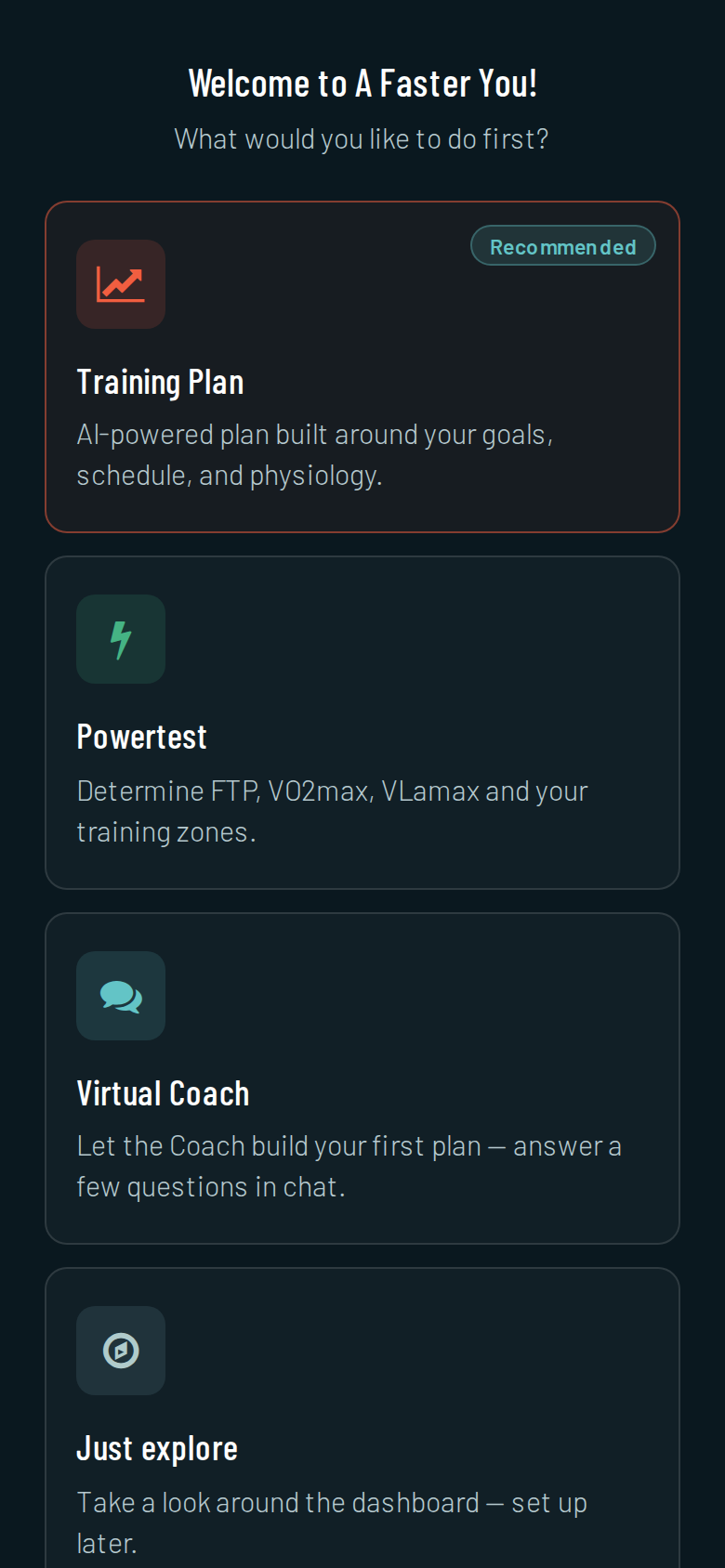
1. Choose Training Plan. After signing up you pick what to start with — take Training Plan.
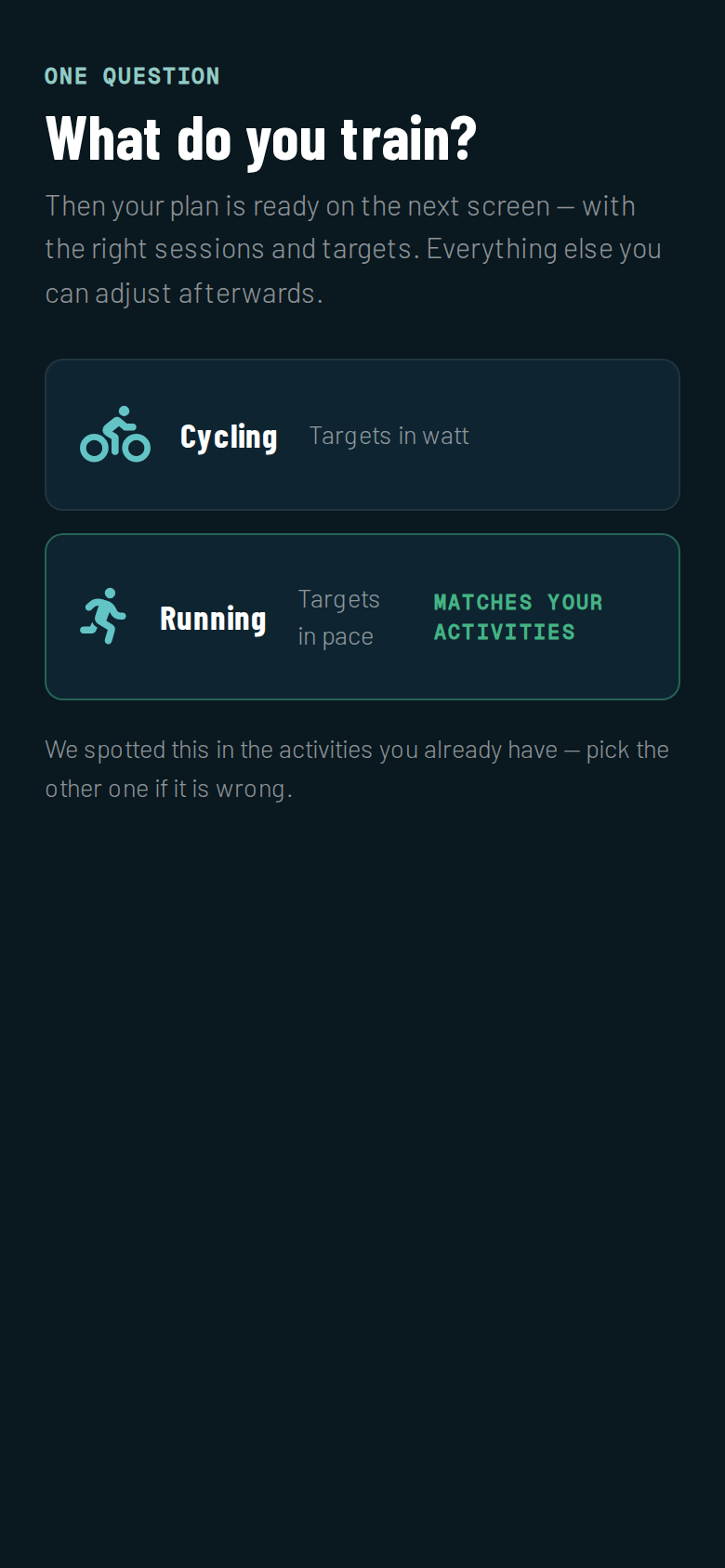
2. Answer the one question: what do you train? Cycling plans work with watt targets, running plans with pace. Everything else can be adjusted later.
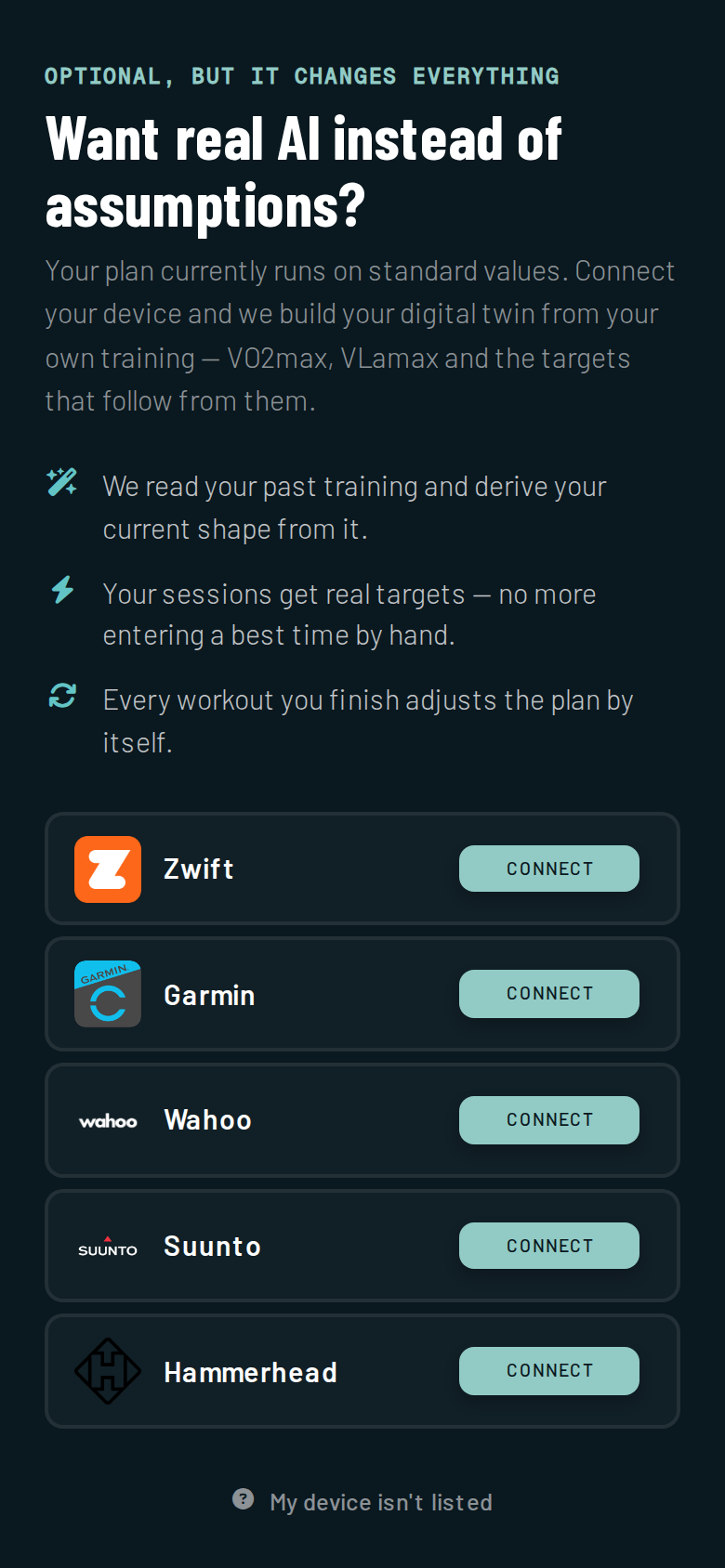
3. Tap Connect on the Suunto row. The plan you are setting up is bound to this connection — which is exactly what the workout push needs.
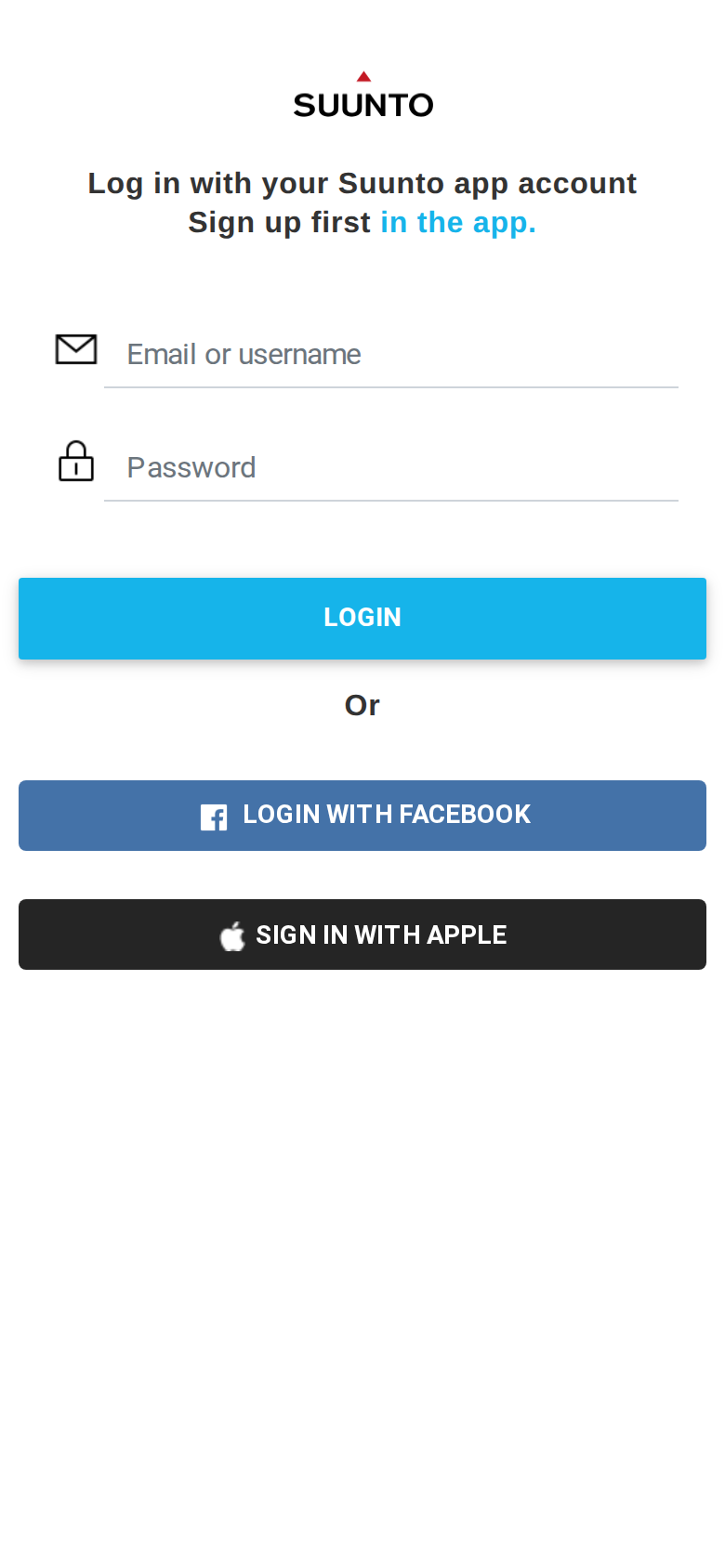
4. Log in at Suunto. You land on Suunto's own login page and authorise A Faster You there. We never see your Suunto password — it's a standard OAuth handoff. (A Suunto account, by the way, is created in the Suunto app, not on this page — the form itself points that out.)
5. Connected. The Suunto card turns green, sync is on — no extra checkbox — and your 30-day Premium trial starts.
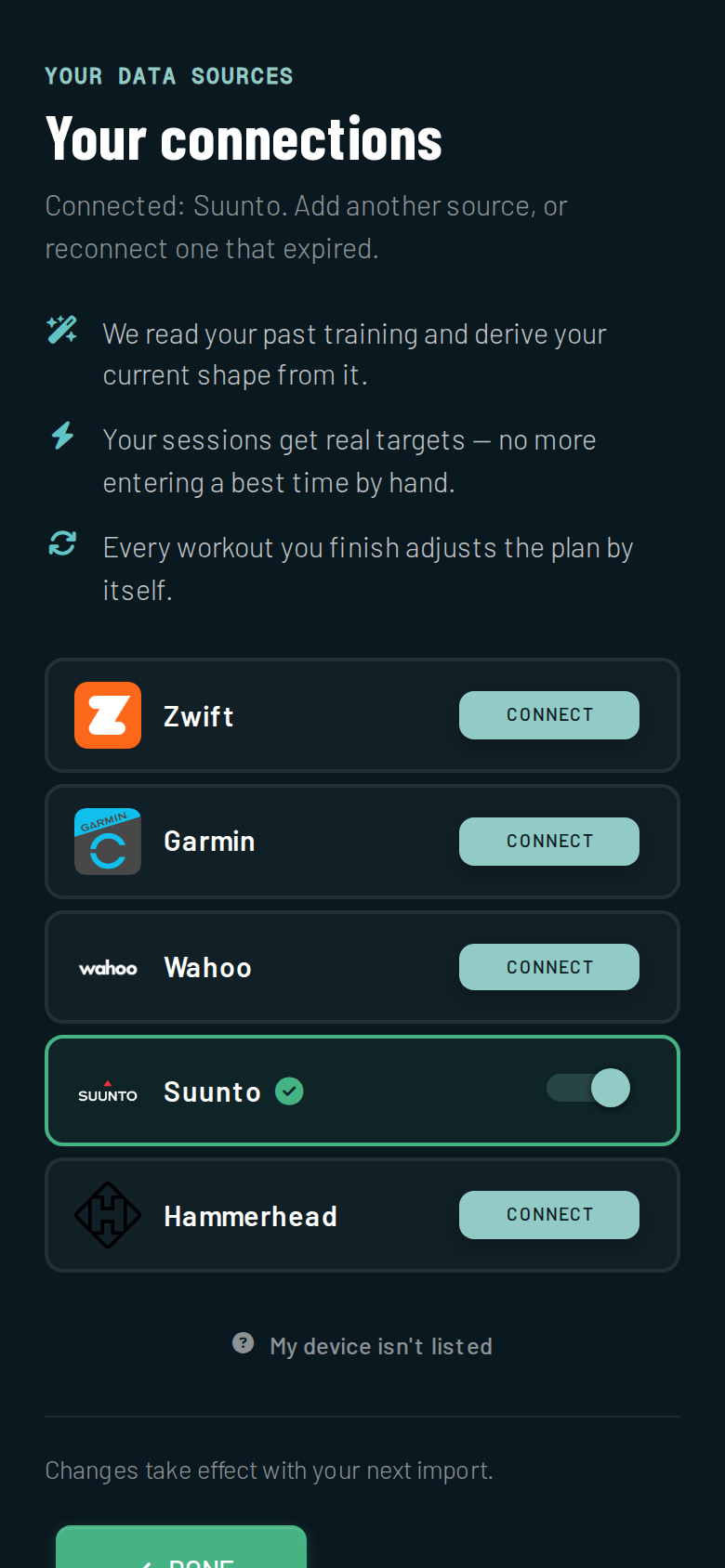
Right after that you see your plan — and while you're looking at it, we are already reading your training history from Suunto and building your digital twin from it:
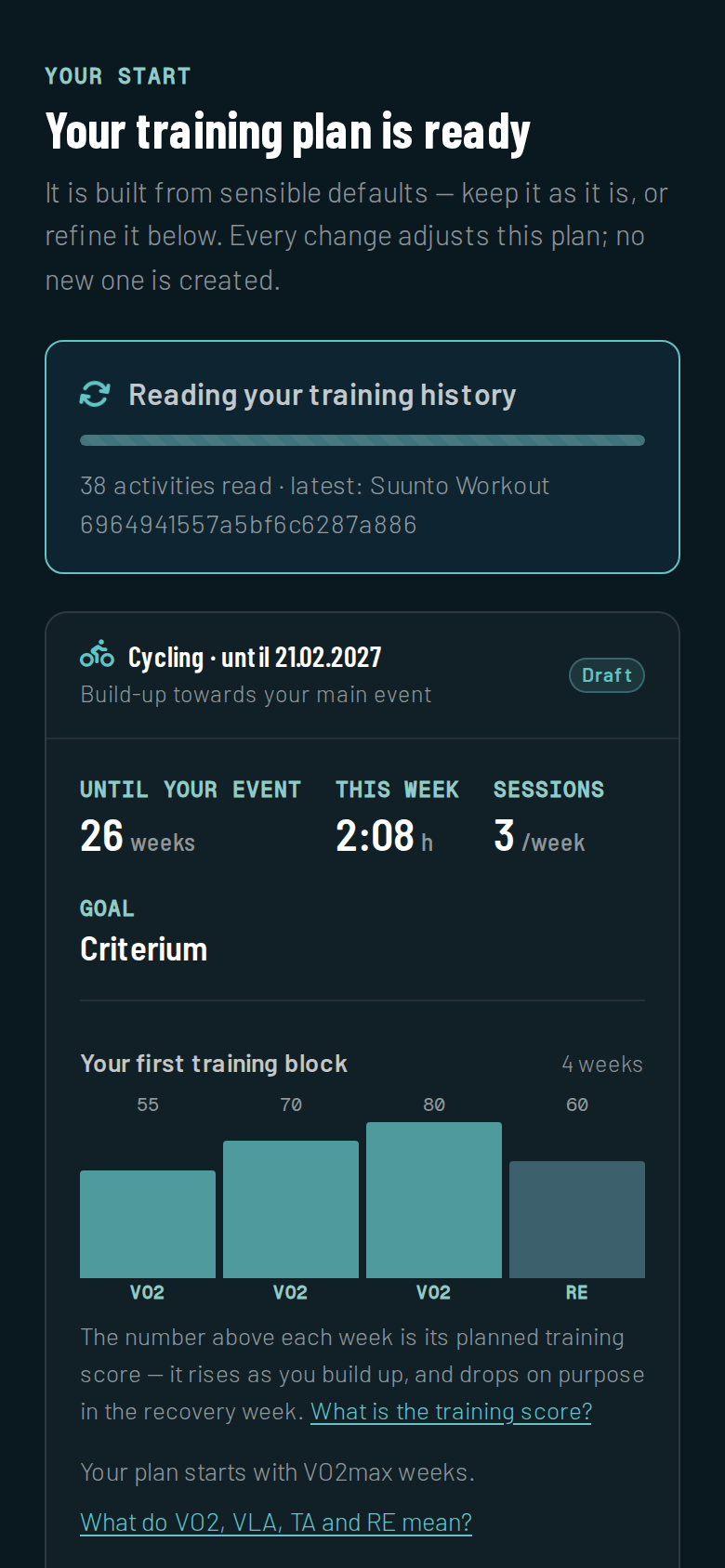
6. Activate the plan. If we could already read your performance from your history, one tap on Activate plan is all it takes. If the import is still running, the plan asks you for one single value — FTP for cycling, for example — so your sessions carry real watt targets right away:
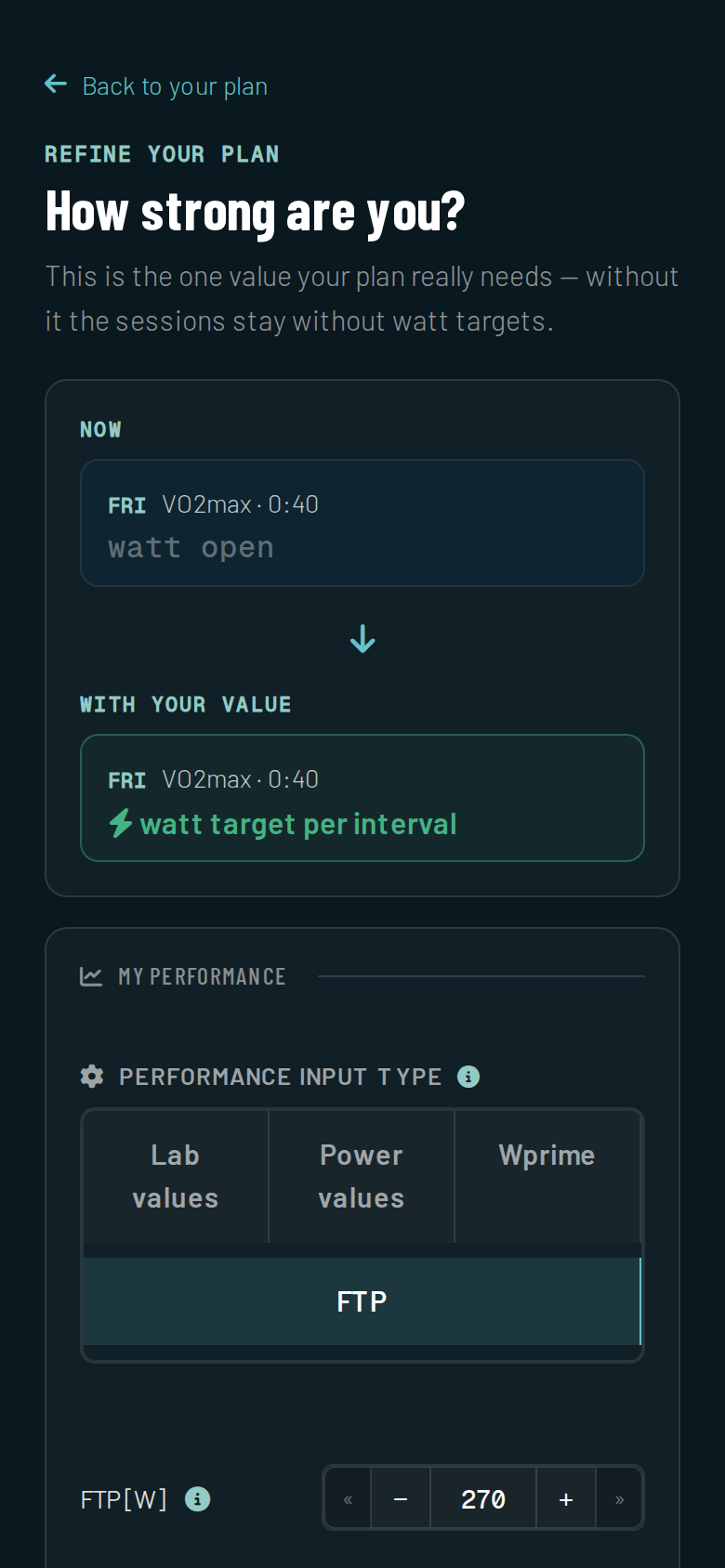
Your calendar fills with your week, and the current week's sessions go out to your watch as SuuntoPlus™ guides the moment the plan exists:
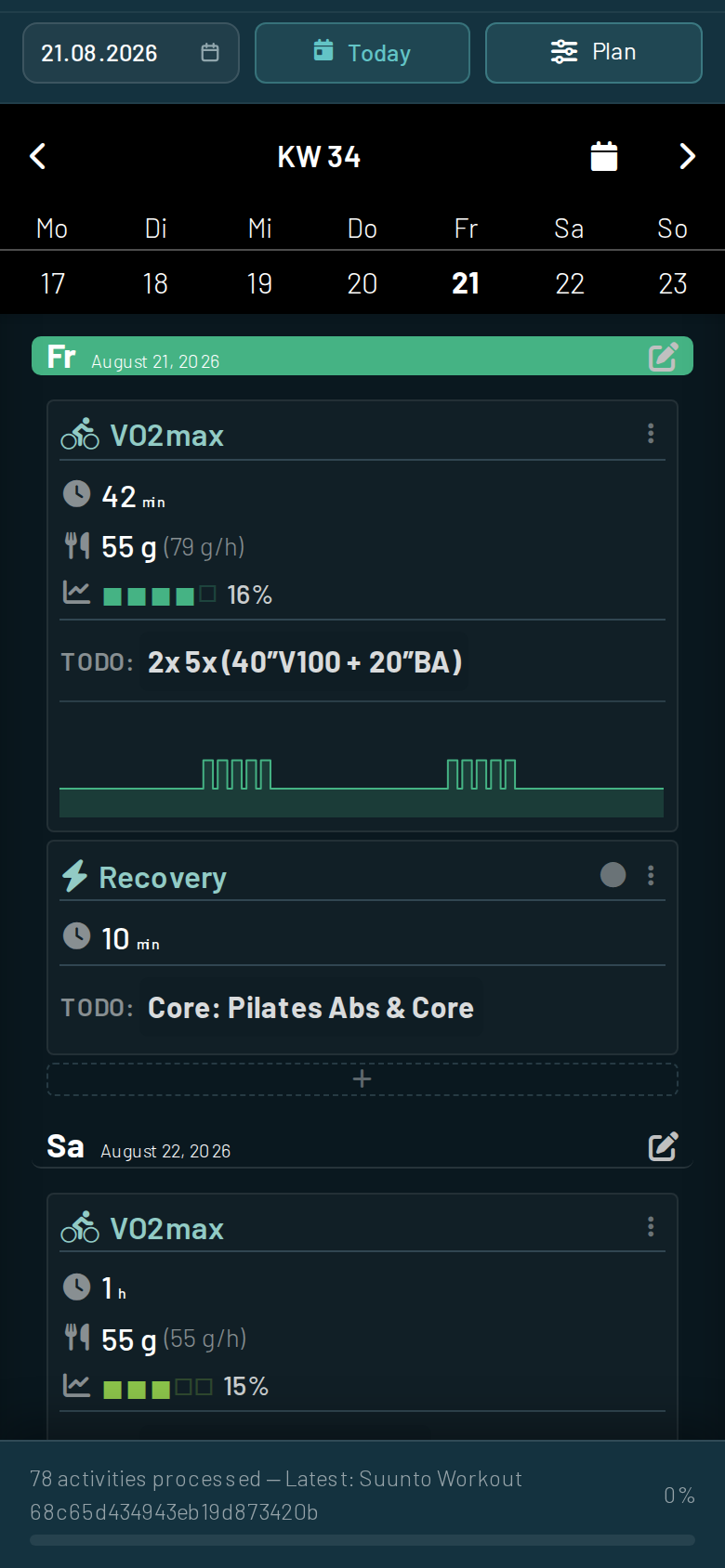
That's it on our side. On Suunto's side, your watch needs to be paired with the Suunto app and running current software; which watch models support guides is documented by Suunto in How to get started with SuuntoPlus™ guides.
Where your workouts show up
Each planned session is pushed as one SuuntoPlus™ guide carrying its own date. In the Suunto app you'll find them under SuuntoPlus™ guides in the sync view — a guide that has reached your watch is marked with a green watch symbol, and from the guide card you can pin a guide to the watch or remove it.
On the watch, a guide is picked before you start recording. Suunto's own walkthrough for starting SuuntoPlus content is the reference here: go to Exercise, choose your sport mode, then swipe up or press the lower right button to access the options and scroll to SuuntoPlus™. Depending on the date of the session, the watch also prompts you to start with the guide that's due.
One thing worth knowing before your first session: on Suunto watches you use either a SuuntoPlus™ feature, or a guide, or a structured workout during a recording — not several at once.
What each guide contains
A guide isn't a name and a duration. Every block of your session becomes one step with its own countdown, so the watch walks you through the workout:
- Cycling — each step carries a target power in watts, with the lower and upper bound of the interval band.
- Running — each step carries a target pace, derived from your current threshold pace.
- Both — heart rate and the matching live metric are on screen for every step, plus a countdown to the end of the step.
The targets come from your own performance values, not from a generic template. If you've done a Powertest, the AI uses those numbers; if you haven't, it works from your recent training data.
What happens after Create Plan
Your plan adapts, and every adaptation re-syncs. Several times a day, the AI rebalances the load of your upcoming sessions — intensity, interval count, duration — after your overnight data lands, after each finished activity, and overnight if a session was missed. Once a week, on Monday morning, the whole current week is recalculated on a fresh estimate of your VO2max, VLamax and threshold. Whenever a session changes, the guide on your watch is updated in place rather than duplicated.
Your finished sessions come back on their own. End the recording, and the session is pulled in, matched to the planned workout, and the actual numbers replace the planned ones. This works whether you completed the workout, cut it short, or trained something entirely different — the next sessions adapt to what happened, not to what was supposed to happen.
You can hand the plan new constraints in plain language. The virtual coach is the layer between you and the planning AI: "I have no time tomorrow — rebalance the rest of the week" or "I'm adding a race in two weeks". The AI rebuilds the affected part of the plan, and the new guides go straight to your watch.
Prefer a plan that moves less? How often it re-adapts is your call. In the Extra tab of the plan editor you set the rhythm — Daily, Weekly or Monthly: weekly rebalances at the week rollover, monthly at the end of a training block. (The Extra tab lives in the advanced view, which you switch on in the Sport tab.) The push to your watch and the activity sync keep running in every mode.
Without a power meter or a chest strap
You do not need extra sensors to use this. What changes is which target guides you:
- Running — pace targets need nothing beyond the watch itself. This is the setup that works out of the box.
- Cycling without a power meter — the guide still shows the target watts for each step, and the step structure and durations still hold. Use heart rate and the step countdown to steer the session, and treat the watt numbers as the intent of the interval rather than a live target.
- Heart rate without a chest strap — the watch measures heart rate at the wrist, so a strap is optional. Many athletes prefer one for intervals; it isn't a requirement for the sync.
Our own recommendation for the best plan quality is unchanged, and it's the same one we give everyone: a power meter for cycling, a GPS watch for running, a heart rate monitor for both. If you ride indoors, a smart trainer covers the power side — that path is described in the Zwift walkthrough.
Common snags
Nothing shows up on the watch. Two things need to be true: your watch is paired with the Suunto app and synced, and a plan exists on our side. A plan that hasn't been generated yet has nothing to push. Open the Suunto app, let it sync, and check the SuuntoPlus™ guides list.
You connected Suunto somewhere else first. There are several places to connect a device in A Faster You. The plan setup above and the Conn tab in the plan editor bind the connection to a training plan — which is what the workout push needs. The general connections page and the dashboard tile, on the other hand, only set up incoming activity sync. If activities are arriving but no guides appear, reconnect via the plan editor's Conn tab.
Your connection says it expired. Access tokens have a limited lifetime and get refreshed automatically, but a disconnect on Suunto's side ends that. Tap Reconnect on the Suunto card, log in again, and the next plan update pushes as usual.
A session was moved and you're not sure which guide is current. Rescheduling replaces the content of the existing guide, including its date, rather than creating a second one. The guide on the watch is always the current version of that session.
You already used a third-party service with your Suunto account earlier. Suunto notes that previously connected services may need to be disconnected and reconnected before guides work — worth checking if guides never arrive despite everything else looking right.
FAQ
Do I need Premium? Yes. The AI training plan, the workout push to your watch, and the adaptive updates are Premium features. Connecting Suunto starts a 30-day Premium trial automatically, without a credit card.
How far ahead does my watch get workouts? Your current training week. As the week rolls over, the next one follows automatically, which keeps the guide list on your watch tight rather than filled with a whole season.
Do my Suunto activities also count if I don't use a guide? Yes. Activity sync and the guide push are separate. Any session you record is pulled in and matched to your plan, whether you followed the guide, improvised, or trained a different sport.
What about sleep and HRV? If your watch records 24/7 data, sleep duration and stages plus overnight HRV flow in and feed your readiness score — which is what the plan uses to decide whether today's intensity fits.
I train with two devices. Which activity ends up in my plan? The longer recording wins. If two devices capture the same session, we compare them before anything reaches your plan: the recording with the greater total duration becomes the one we keep, and the shorter one is marked as a duplicate. Arrival order does not decide it — if your watch uploads first but your head unit recorded two minutes more, the head unit file takes over.
The duplicate stays out of your training plan and out of your weekly totals, so a session never counts twice. It does remain visible in your activity list, which is deliberate: you can still open it, and you can reverse our decision by hand if we picked the wrong one.
What happens if I disconnect? The guides we created are removed and no further workouts are pushed. Your history in A Faster You stays.
Ready to put your plan on your wrist? Create your account, open your training plan, switch to the Conn tab, and connect Suunto. Your 30-day Premium trial starts the moment the connection is live, and the first guides reach your watch as soon as the plan is generated.
SuuntoPlus™ and Suunto are trademarks of Suunto Oy. Watch-side instructions follow Suunto's official support documentation, linked above.