aeroAPP Garmin: instalación y login que no responde (2026)
Pulsas Login en el Edge. Te dice: mira tu móvil. El móvil no hace nada. Sin error, sin rueda de carga, nada que buscar en Google. Es una pregunta recurrente en el soporte de la aeroAPP, y en los casos que hemos atendido se redujo a tres cosas: la app Garmin Connect, el ajuste del navegador en iOS, o los permisos y restricciones de la cuenta Garmin. Esta es la guía de la aeroAPP desde la instalación hasta la primera pasada, con esos fallos silenciosos primero, porque ahí es donde la gente se atasca.
Qué es la aeroAPP
Una app de Garmin Connect IQ que corre en tu Edge y convierte un aeroTEST en una rodada guiada. Te hace la cuenta atrás hasta el inicio de tu ruta de test, te avisa cuándo girar, comprueba cada pasada contra la anterior y envía los datos a afasteryou.com a través de tu móvil. Tu área de resistencia aerodinámica (CdA) aparece en el Edge después de cada pasada que la plataforma ha calculado. Todo se guarda además como archivo FIT en el dispositivo, así que una conexión perdida con el móvil nunca pierde una pasada.
Dispositivos: Garmin Edge 520 Plus, 530, 540, 550, 830, 840, 850, 1030 (incluidos el Plus y la edición Bontrager), 1040, 1050, Explore 2 y el Edge MTB. Es una app para Edge; no hay versión para reloj.
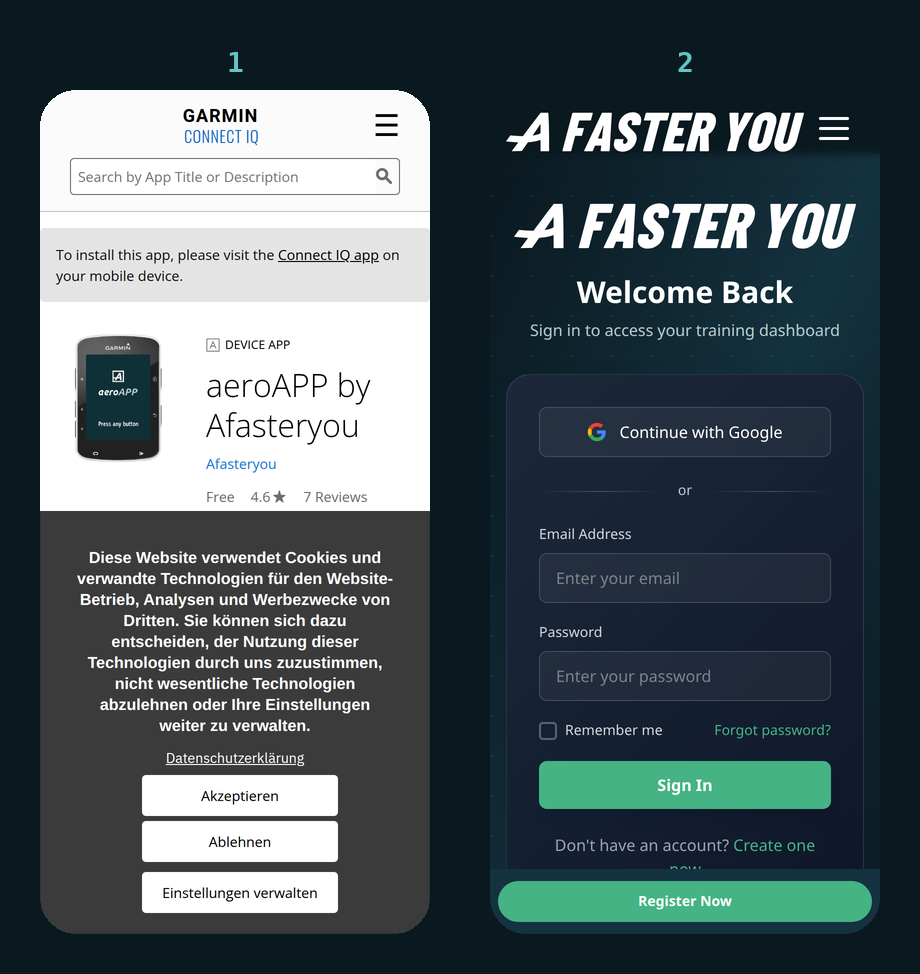
Coste: la app es gratuita, y los aeroTESTs al aire libre forman parte de la cuenta gratuita. El modo Professional (pasadas ilimitadas por setup, test de resistencia a la rodadura) necesita un Powermonth; los tests en velódromo necesitan la cuenta Coach. ¿Aún sin cuenta? Crea tu cuenta gratuita antes de abrir la app.
Instalación
- En tu móvil, abre la Connect IQ Store (la app Garmin Connect la tiene bajo Más, o usa la app Connect IQ independiente) y busca aeroAPP by Afasteryou, o abre directamente la página de la tienda.
- Instálala en tu Edge. El Edge debe estar emparejado con el móvil a través de Garmin Connect; la app llega al dispositivo en la siguiente sincronización.
- En el Edge, la aeroAPP aparece entre las apps de Connect IQ. Ábrela una vez en casa. Quieres resolver el login en el sofá, no al borde de la carretera.
Cómo funciona el login
Esto merece treinta segundos, porque explica todos los fallos de abajo. El Edge no tiene teclado ni navegador. Cuando pulsas Login, la aeroAPP pide a tu móvil, a través de la app Garmin Connect, que abra una página de login en el navegador del móvil. Ahí inicias sesión con tu cuenta de afasteryou.com. El navegador devuelve un token a Garmin Connect, Garmin Connect se lo pasa al Edge, y el Edge muestra Login successful!
Así que la cadena es: Edge, Bluetooth, app Garmin Connect, navegador del móvil, afasteryou.com, y vuelta. Si falta cualquier eslabón, el Edge espera y el móvil no muestra nada.
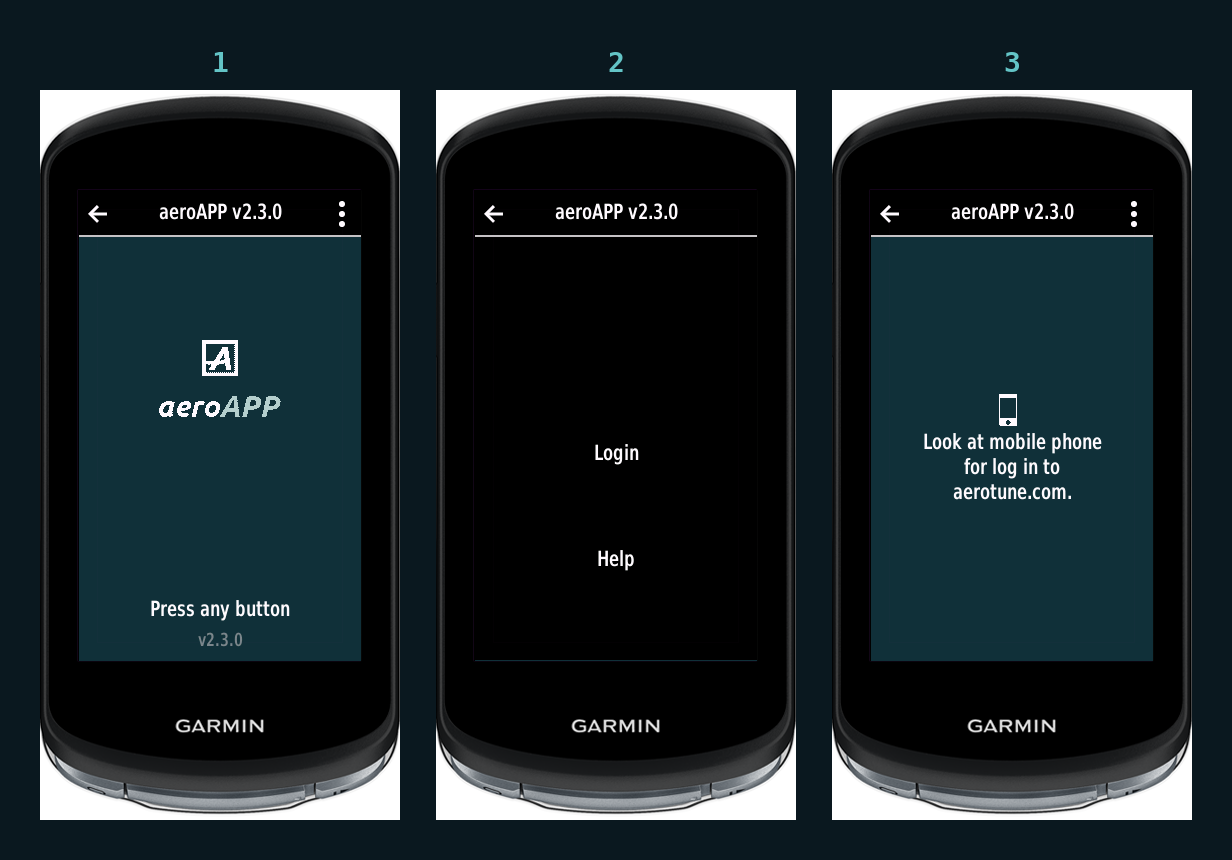
(Puede que el dispositivo aún muestre una dirección anterior: redirige a afasteryou.com. La página de login que se abre es afasteryou.com, y tu cuenta de afasteryou.com es la correcta. Las antiguas guías en PDF indican una dirección que ya no funciona; usa afasteryou.com en su lugar.)
Cuando no pasa nada: tres fallos silenciosos
Repásalos en este orden.
1. Garmin Connect no está en marcha, o el móvil no está conectado. Abre la app Garmin Connect en el móvil, espera hasta que muestre el Edge como conectado, déjala abierta en primer plano y vuelve a pulsar Login en el Edge. El traspaso necesita la app Garmin Connect despierta; un móvil con Garmin Connect cerrada o con el Bluetooth apagado no puede abrir nada.
2. iPhone: Safari no es tu navegador predeterminado. En el flujo de login actual en iOS, el traspaso falla en silencio a menos que Safari sea el navegador predeterminado. Ajustes, Safari, App de navegador predeterminada, Safari. Puedes volver a cambiarlo después del login; el token se queda en el Edge.
3. Garmin Connect está restringida. Una cuenta o un dispositivo Garmin con restricciones (una cuenta gestionada o familiar, o permisos de app en el móvil que niegan a Garmin Connect el acceso a la red o al Bluetooth) nunca entrega la página de login. Revisa los permisos de app de Garmin Connect en el móvil, y comprueba que la propia cuenta Garmin no tenga restricciones. Una vez levantadas, el login funciona en el siguiente intento.
Si las tres cosas están bien y el móvil sigue sin mostrar nada, reinicia el Edge y el móvil, abre primero Garmin Connect y vuelve a intentarlo. Si eso también falla, escribe a info@afasteryou.com con el modelo de tu móvil y la versión de su sistema operativo, el modelo del Edge, las versiones de Garmin Connect y de la aeroAPP, y lo que mostró el Edge. Eso es lo que necesitamos para seguir investigando.
Otros mensajes que verás
| En el Edge | Qué significa | Qué hacer |
|---|---|---|
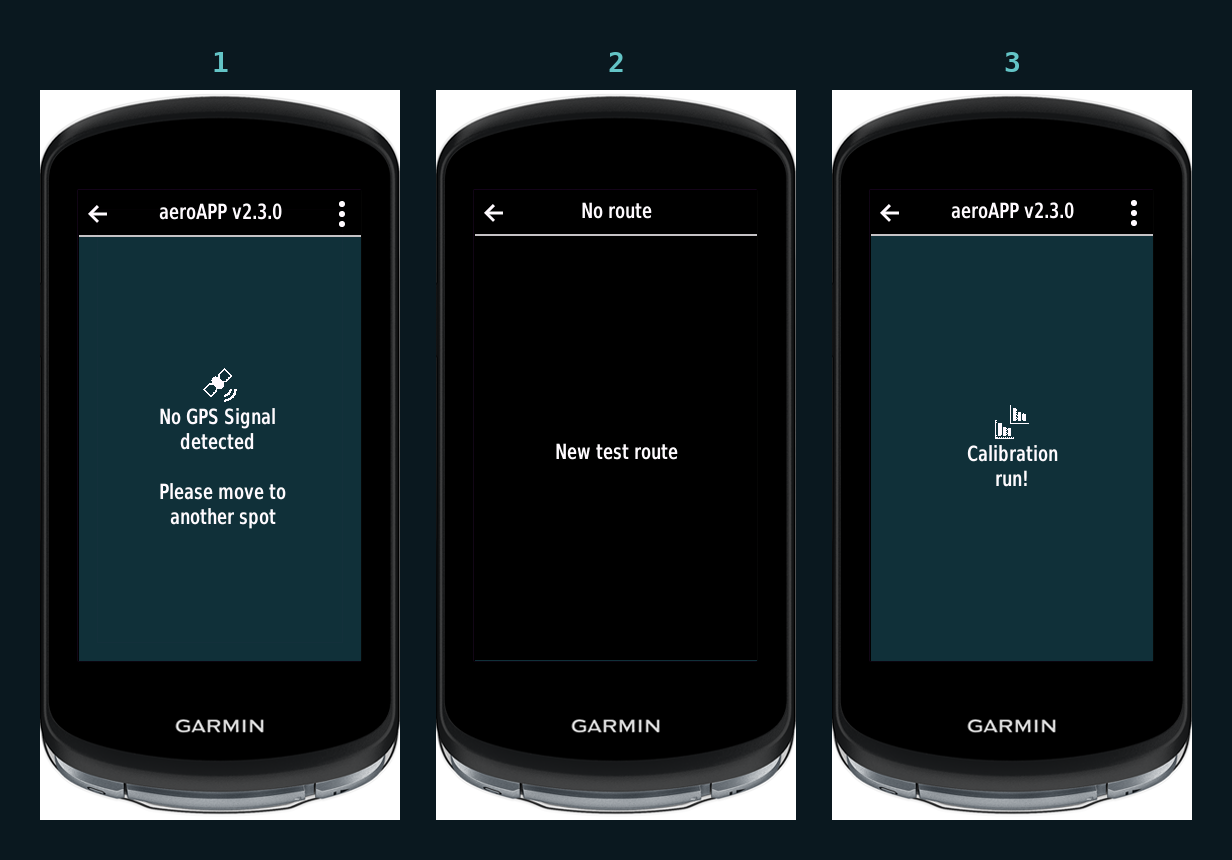
| Calibration run! | Es el Setup 0; su CdA no se usa para comparaciones | Ruédala, y después empieza el setup de la línea base |
| Waiting for phone to connect | Sin enlace Bluetooth con Garmin Connect | Abre Garmin Connect en el móvil, espera la conexión |
| Login expired. Please login again | El token ha caducado | Inicia sesión otra vez, mismo procedimiento |
| Access forbidden! Check power meter and account status | El Edge no tiene ningún potenciómetro conectado, o tu cuenta no incluye ese tipo de test | Empareja el potenciómetro; para velódromo o modo Professional, revisa tu cuenta |
| No power data. Check your power meter! | Medidor conectado pero mudo | Despierta el medidor, revisa la pila, reinicia ambos si persiste |
| No speed. Check your speed sensor! | La app esperaba un sensor de velocidad y no encontró ninguno | Despierta el sensor, o pon Speed sensor en If found |
| GPS OFF! Please enable GPS | GPS desactivado en el Edge | Activa el GPS en los ajustes del dispositivo |
| Version not supported. Please update the aeroAPP! | Versión antigua de la app | Actualiza a través de la Connect IQ Store |
| Powermonth required for professional modus | El modo Professional no es gratuito | Quédate en modo Basic, o añade un Powermonth |
| Turn too early. Please repeat | Giraste antes del final de la ruta | La próxima vez rueda hasta el punto de giro |
| Position not stable. Please repeat the test | Dos pasadas del setup no coinciden | Rueda otra pasada; revisa viento, chaqueta suelta, posición movida |
Los ajustes, explicados
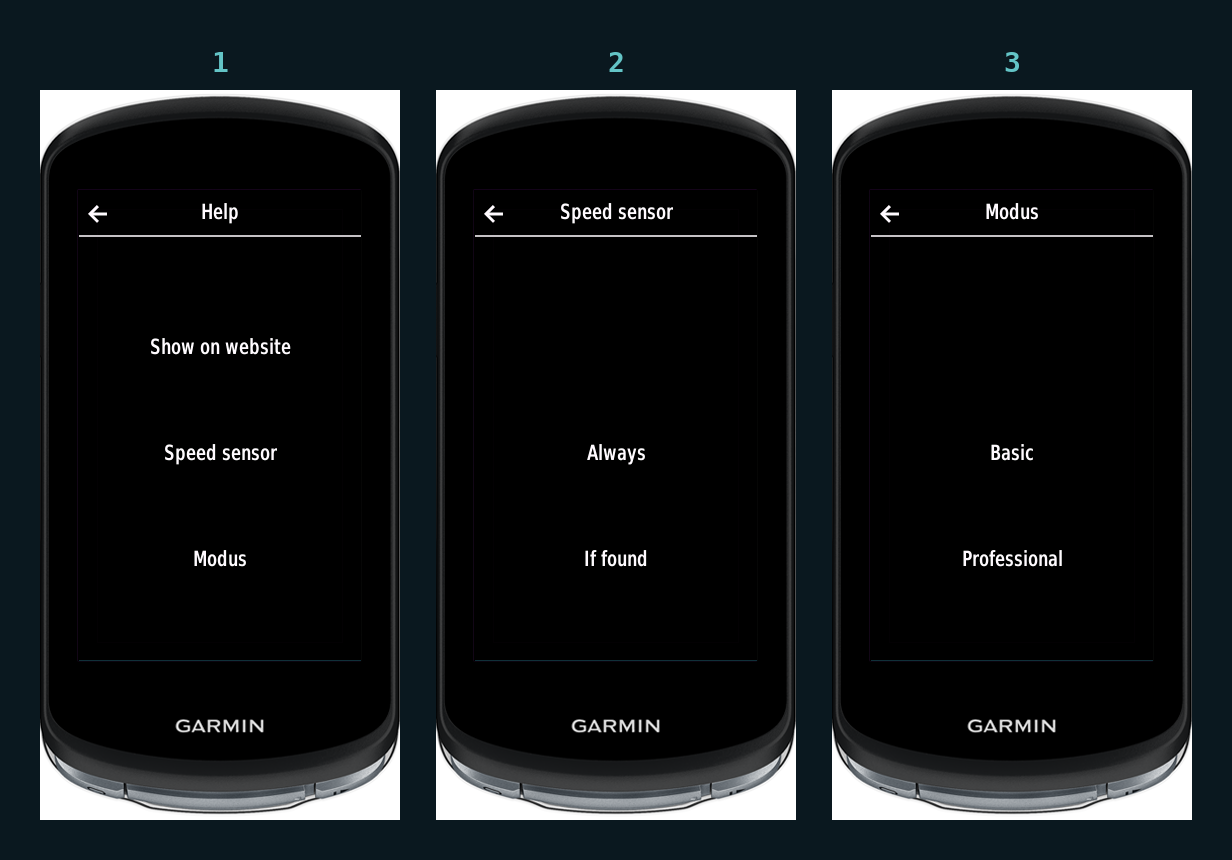
- Modus, Basic o Professional. Basic te guía por dos pasadas por setup y pide una tercera solo cuando no coinciden. Professional te deja rodar tantas pasadas como quieras y añade el test de resistencia a la rodadura (beta). Professional necesita un Powermonth.
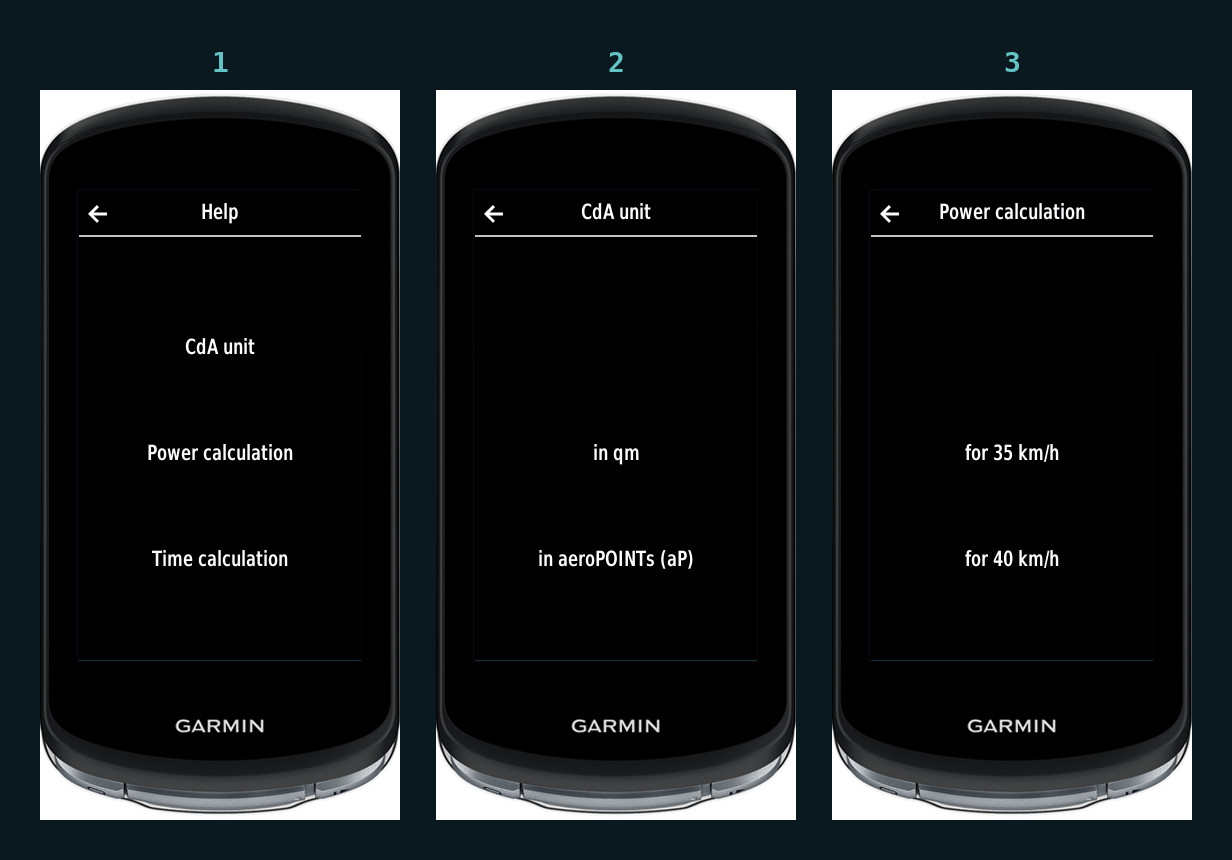
- CdA unit. Aero points (aP, 1 aP = 0,01 m²) o metros cuadrados. Recomendamos aP: 22,8 se lee mejor que 0,228.
- Power calculation. La velocidad a la que el Edge convierte una diferencia de CdA en vatios ahorrados; eliges entre tres velocidades.
- Time calculation. La ruta de competición sobre la que el Edge convierte una diferencia de CdA en tiempo ahorrado, a la potencia de tu sesión.
- View of difference. Deltas relativos o absolutos entre setups en la pantalla de resultados.
- Show on website. Envía tu móvil al aeroTEST actual en afasteryou.com, para editar los detalles de la sesión mientras aún estás en la carretera.
- Feedback to test, On u Off. El veredicto después de cada pasada: valida con una pasada extra, posición estable, o repite. Off mantiene el Edge callado entre pasadas; la comprobación sigue ocurriendo en la plataforma.
- Biketype. Bici de contrarreloj, de carretera, de montaña o de ciclocrós: selecciona la categoría que corresponde a la bici que estás probando.
- Power smooth, 3, 5 o 10 s. Cuántos segundos promedia el número de potencia en pantalla. 3 s es el valor por defecto; elige el que puedas seguir rodando.
- Speed sensor: On, Off, Always, If found. Always le dice a la app que espere el sensor en cada pasada; If found lo usa cuando está y usa la velocidad GPS cuando no. Un sensor reduce la incertidumbre de una pasada, así que si tienes uno, elige Always: un sensor dormido debería detener la pasada, no convertirla en silencio en una pasada por GPS.
Las rutas de test están ligadas a donde estás
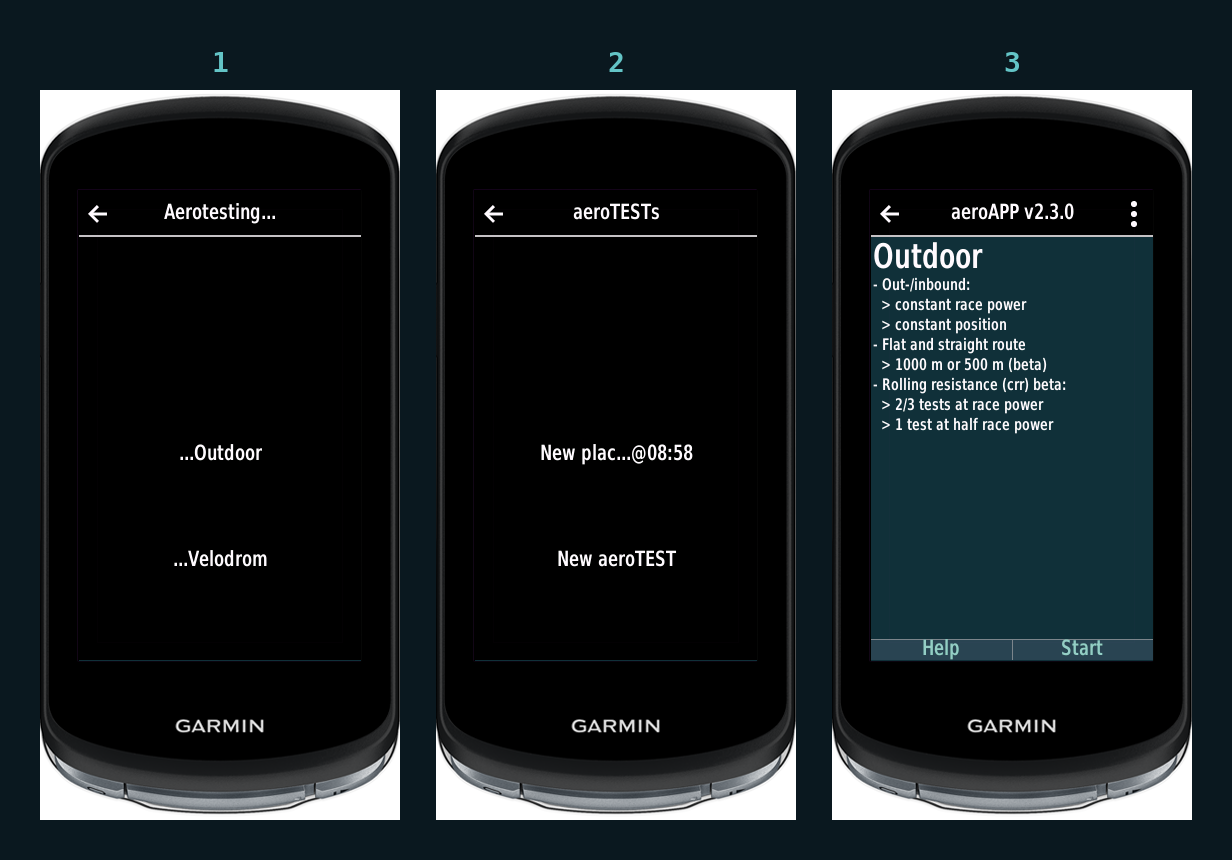
Cuando inicias un aeroTEST nuevo, la app pide a la plataforma tus rutas de test guardadas cerca de tu posición GPS y te ofrece aquellas cuyo punto de salida está a menos de unos tres kilómetros. Ponte en otro sitio y el menú solo muestra "New test route", lo cual es correcto: un aeroTEST se rueda en la carretera en la que estás. Ve hasta la carretera, espera la señal GPS y entonces empieza. Las rutas se pueden renombrar o borrar en afasteryou.com bajo Aerotest, Rutas de test.
Antes de la primera pasada: una lista de comprobación
- aeroAPP instalada y con la sesión iniciada en casa
- Garmin Connect en el móvil, móvil emparejado, datos móviles activados
- Potenciómetro emparejado y calibrado una vez
- Sensor de velocidad emparejado, circunferencia introducida a mano
- Ruta de test elegida; la carretera importa más que el material
- El protocolo en la cabeza, las reglas de calidad en las piernas
Preguntas frecuentes
¿Tengo que llevar el móvil encima durante las pasadas? El móvil hace falta para iniciar sesión, para cargar tu sesión y tus rutas, y para enviar cada pasada cuando termina, de vuelta en la marca de salida. Nuestras preguntas frecuentes de la plataforma permiten dejarlo en el coche o con un amigo en el punto de salida; el alcance del Bluetooth a través de la carrocería de un coche no está garantizado, así que la opción segura es el bolsillo del maillot. Si una pasada no se puede enviar, se queda en el Edge como archivo FIT.
¿Puedo usar la aeroAPP sin móvil? No para la sesión guiada. La app mide y guía, pero el cálculo ocurre en la plataforma, y durante la sesión el móvil es el enlace entre ambos. Las pasadas que no se pudieron enviar se guardan como archivos FIT en el Edge y se pueden soltar en la plataforma más tarde.
La app funciona pero no muestra ningún CdA después de la pasada. Comprueba en este orden: si el móvil está conectado y Garmin Connect abierta; si la pasada grabó potencia y velocidad (el Edge muestra un mensaje si no); si rodaste la ruta completa hasta el punto de giro y de vuelta. Si la pasada estaba completa pero no se pudo enviar, está en el Edge como archivo FIT; arrástrala a la plataforma más tarde, o rueda la siguiente pasada cuando el móvil vuelva a estar al alcance.
¿Funciona en un Fenix o un Forerunner? No. La aeroAPP está hecha para la serie Edge listada arriba.
¿Qué login uso? Tu cuenta de afasteryou.com, la misma que usas en la web. El login de Garmin es solo el mensajero.
¿Puedo hacer tests en velódromo con ella? Sí, con la cuenta Coach: la app tiene un modo indoor con detección automática de vueltas. Es otro protocolo, descrito aquí.
Fuentes: aeroAPP tal como está publicada en la Garmin Connect IQ Store y sus textos en el dispositivo, septiembre de 2026. Cadena de login y fallos silenciosos: casos de soporte de afasteryou.com, julio y agosto de 2026. Lista de dispositivos según la compatibilidad publicada de la app. Ubicación del móvil: preguntas frecuentes del aeroTEST en afasteryou.com.